Tiggzi comes with a small JavaScript library to make working directly with jQuery Mobile in JavaScript easier.
Tiggzi(id)
Tiggzi('component_name') is a shortcut to get a reference to a jQuery Mobile component in a screen by using its designated name. For example, let’s say we have the following mobile UI:
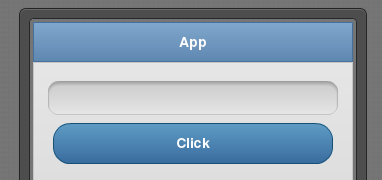
On button click, we would like to read the value entered in the input field.
- Add a click event to the button
- Add Run Custom JavaScript action to the click event
- Run custom JavaScript looks like this (assuming the input component name is input):
var input = Tiggzi('input');alert (input.val()); - The app looks like this when running:
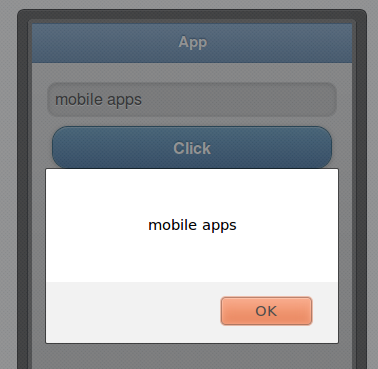
What we showed above is easy and quick way to get access to any component in the screen. It’s equivalent to using jQuery directly:
var input = $('input[dsid="input"]');
alert (input.val());
Once you get a reference to the element, you can use any jQuery API to manipulate the element. It’s plain JavaScript and jQuery - nothing else!
Once you get a reference to a component, what jQuery API is available depends on the actual component. For example, if you got a reference to an input component, then you can use this to read or set its value:
Tiggzi('input').val();
or to set:
Tiggzi('input').val('hello');
If you get a reference to a label component, then the API is different and to read the value you would use:
Tiggzi('output').text();
It’s important you familiarize yourself with the jQuery and jQuery Mobile API.
This function allows you to navigate to another page in JavaScript. For example, if you have a page named ‘menuPage’, to navigate to this page:
Tiggzi.navigateTo('menuPage', {});
The second argument can be blank but you can use it to specify transition affect. For example:
Tiggzi.navigateTo('menuPage', {transition : 'slideup'});
All available transitions are listed on jQuery Mobile site.
You can also specify whether the transition should be done in reverse:
Tiggzi.navigateTo('menuPage',
    {transition: 'slideup',
     reverse: false});
Tiggzi.getImagePath(name)
Tiggzi.getImagePath(‘image_name’) returns the URL of an image. For example, let’s say you uploaded an image and placed it on the page. You set the Image component name on the page to: page_logo. To get the image URL, you would invoke the following:
Tiggzi.getImagePath('page_logo');
would return something like this:
http://project.tiggzi.com/views/3053226e-c948-4933-be2b-08d04e8e6b76/image/page_logo