Contents
What are we going to build?
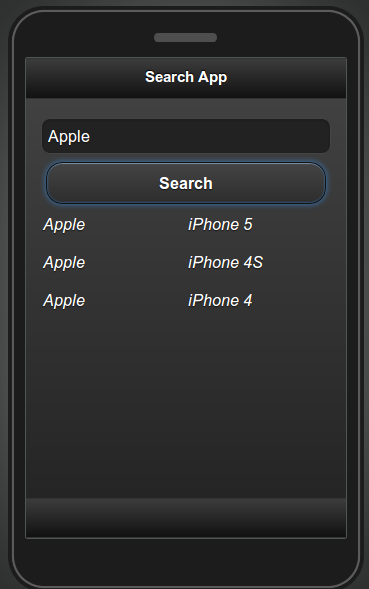
This tutorial will show you how to build an app that searches data stored in Tiggzi Backend Services. The app will look like this:
Before you start
Tutorial level: Intermediate
Creating a new app
Create a new app in Tiggzi app builder. From Apps page, enter app name (use any name you want) and click Create. You will see a start page.
Building the UI
Open startScreen page and create the following UI:
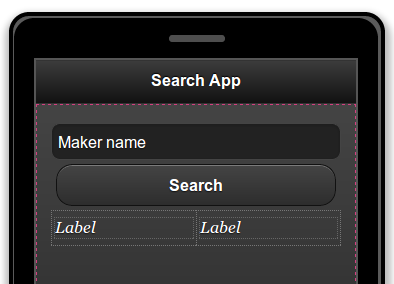
- Maker name is a placeholder
- Below the button, there is a grid with two columns and a label inside each column.
Creating the database
We are now going to create a new database and then import data into it.
- Click Backend Services inside the builder (next to Test)
- For Database Name enter: phoneDB and click Create
- Go to Collections tab and click Import button.
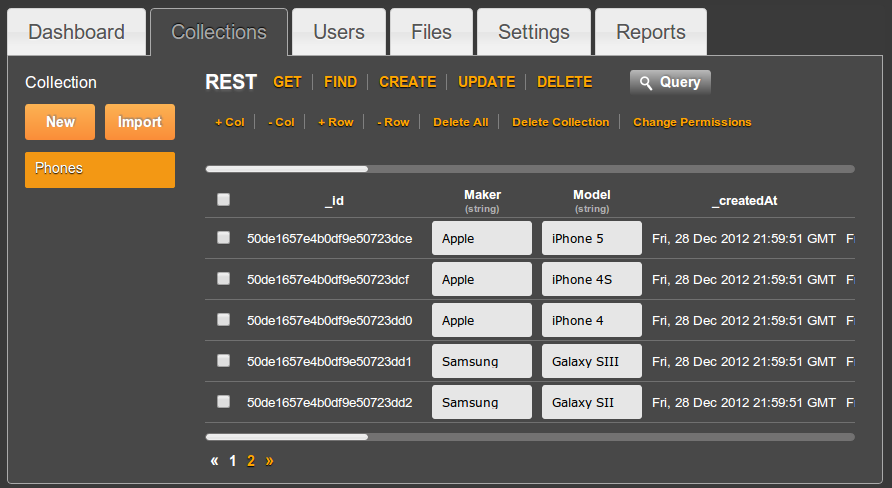
- For Collection name enter: Phones, then upload Phones CSV file to the database. Once the collection is created, it should look like this:
Now that we have the database, let’s create a REST service to search this collection.
Creating a REST service to search the database
- From Project view, Create New > Database Services
- Select the PhoneDD we just created
- Check Query service to be created:
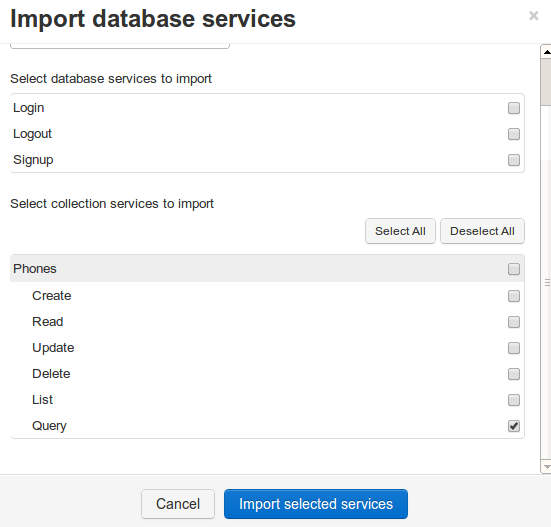
- Click Import select services button.
If you look under Services, you will see two files created. One is the REST service, the other is a settings service that holds the service URL and database key. This is the REST service:
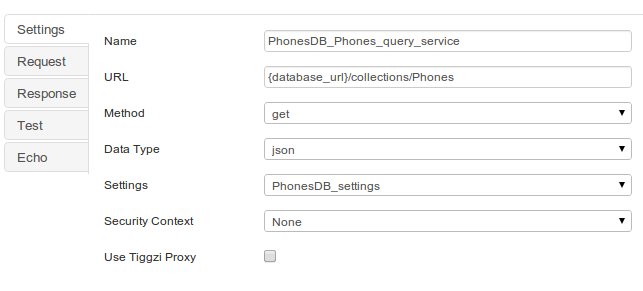
Service Request:
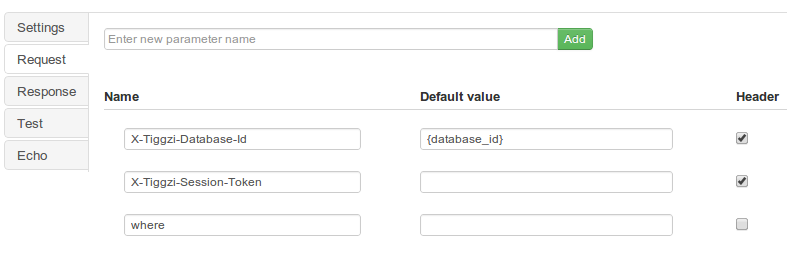
As you can see everything was automatically created.
Testing the service
Open Test tab. As we didn’t specify anything for where parameter, you should get all the phones in the collection.
Let’s now test the where parameter. Enter the value of {“Maker”:”Samsung”}, then click Test. You should now get only records where the maker is Samsung.
Note that we don’t need to create the response parameters as the response was automatically created when we imported the services.
Adding and binding the service to the page
- Open startScreen and switch to Data tab
- For datasource, select Service > PhonesDB_Phones_query_service, click Add
- Rename the service to: service_service
Let’s now map the service.
- Click Edit Mapping
- Create the following mapping (Request):
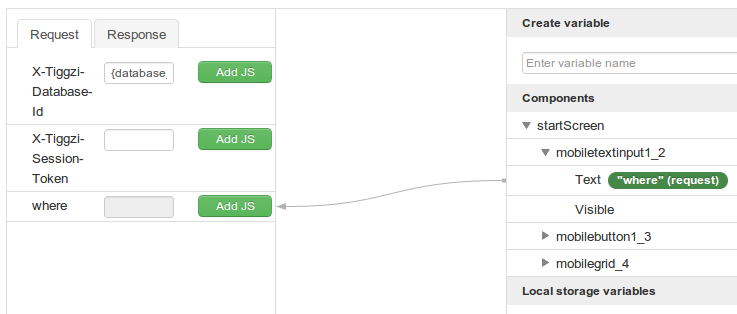
- Click Add JS for where parameter and enter the following code:
return '{"Maker":"'+value+'"}'; - Click Save and Return button to go back.
- Open Response tab
- Create the following mappings:
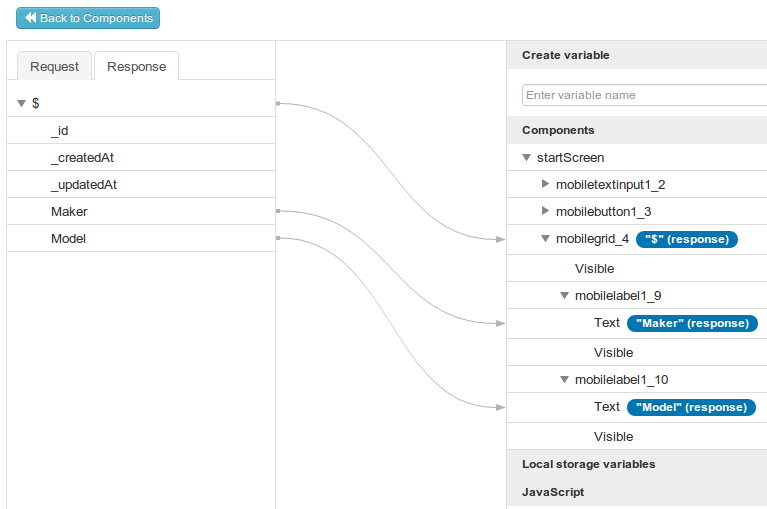
- Save and go back to Design tab.
Next we need to invoke the service.
Invoking the service
- Select the Search button
- Open Events tab
- For Action, select Invoke service (Component and Event will already be selected):

- Click Add event button
- Save
Testing the app
Click the Test button to run the app in the browser. For example, entering ‘Apple’:
Displaying a message when no records are found
- Add a new Label to the page:
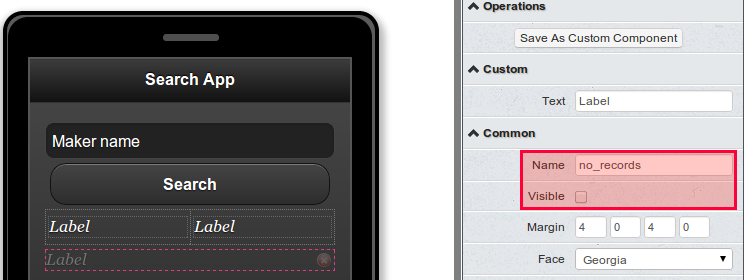
Change the label name to: no_records and uncheck Visible. - Select the button and add Run JavaScript event on click with this code:
Tiggzi("no_records").hide();That’s to hide the label on every new search.
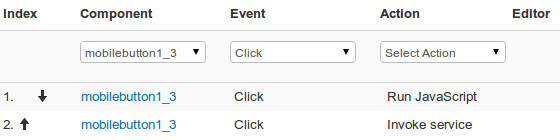
- Change the order (by using arrows) in which the actions are invoked, we want first to hide the label:
- Open Data tab
- Open Events tab, open Events tab if closed
- Select search_service (Component) > Complete (Event) > Run JavaScript (Action) with this code:
if (jqXHR.responseText == "[]"){
   Tiggzi("no_records").text("Nothing found");
   Tiggzi("no_records").show();
}
If nothing is returned, show the message
- Click Add event.
- Save.
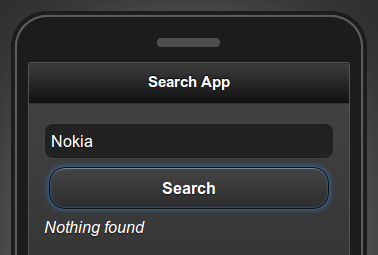
Searching for Nokia will display the message: