Contents
What are we going to build
This tutorial will show you how to set up Push Notifications feature.
Before you start
Tutorial level: advanced
Creating a new app
Create a new app in Tiggzi app builder. From Apps page, enter app name (use any name you want) and click Create.
Configuring Push
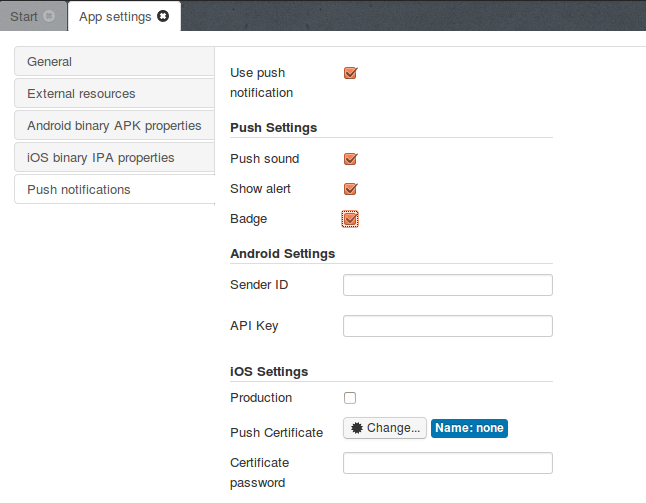
- Open Project > App settings > Push notifications
- Check ‘Use push notification’ checkbox
- In ‘Push Settings’ check all three items:
- Push sound
- Show alert
- Badge
This means that all of the above will happen when a new push notification arrives. For example, checking ‘Push sound’ option will make a sound, Badge will show number of unread notifications.
- Save.
Next we are going to configure device settings.
Configuring the device for Push notifications
Depending on your device and OS, you have to initialize Android settings and/or iOS settings or both of them.
Android
- Go to https://code.google.com/apis/console/ and sign in.
- Click Create project… button
- You will see a list of services. From the list, find Google Cloud Messaging for Android service and turn it on (you will need to accept terms and conditions)

- Scroll up and click API Access item in the left menu:
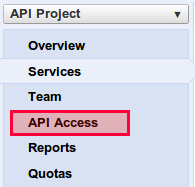
- Now, copy the project id (75199255876), from the URL: https://code.google.com/apis/console/#project:75199255876:access, and paste it into Sender ID field in Push notifications tab in Tiggzi
- Copy the API key:
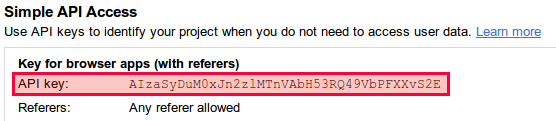
and paste it into API key field
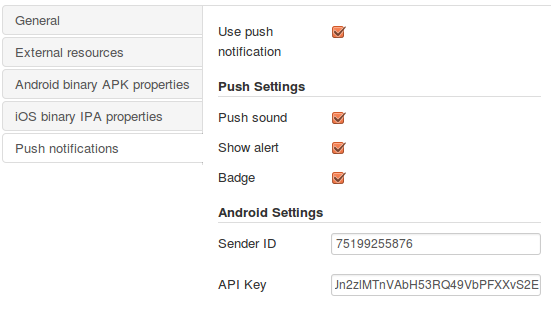
That’s it for Android configuration.
iOS
Before yous start, to enable Push Notifications for an iOS app, you must have a Development Certificate if your app registered in Development mode and Production Certificate if your app registered in Distribution mode.
- In Push notifications tab in Tiggzi, check Production check box if application is in Distribute stage, otherwise leave it unchecked
- Upload Push Certification file
For generating Push Notification Certificate you need to open App Ids page, find desired App ID, click Configure button and Check Enable for Apple Push Notification service check box. Then, click Configure button (Select either Development or Production stage)
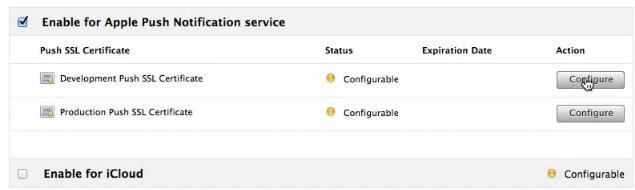 Note that Bundle ID shouldn’t have a wild card character otherwise you cannot configure Push Notification properties)
 - Fill the Certificate password that was specified during p12 certificate creation
That’s it for iOS configuration.
Assigning Push Notifications
- Build the following simple UI:
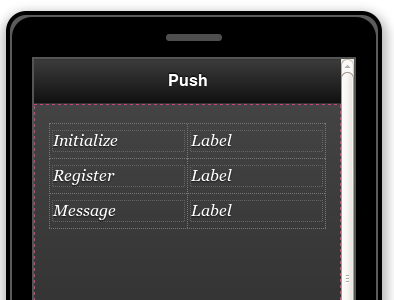
- Insert a Grid component and then add a third row
- In the first column insert labels and rename the text as shown
- The second column also has label. Change the labels names (Name property) as follows:
- initLabel
- registerLabel
- messageLabel
- Open Events tab
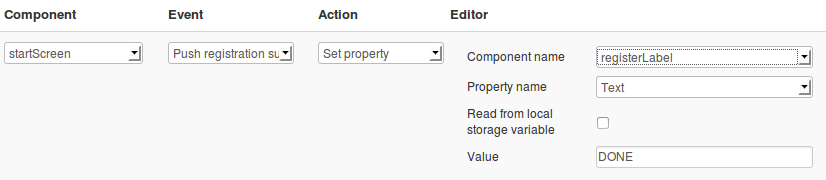
- For Component select: startScreen
- For Event select: Push initialize
- For Action select: Set property
- Component name: initLabel
- Property name: select Text
- Value: DONE
- Click the green plus button to save event:
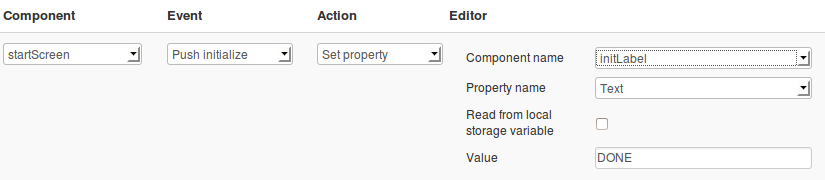
- Repeat the steps above (3 - 6) for Push registration fail and Push registration success
- Push registration fail
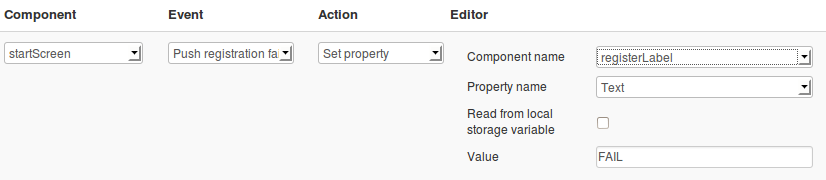
Don’t forget to save the event. - Push registration success
Don’t forget to save the event.You should end up with three events after above steps:
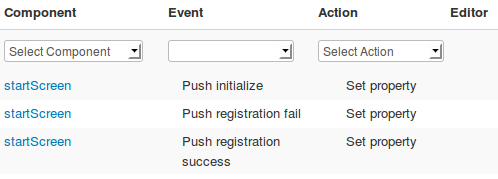
- Push registration fail
- We need to add one more event. Select startScreen as component, Push notification in Event and Run JavaScript for action. Enter the following code:
alert (data.aps.alert); Tiggzi("messageLabel").text(data.aps.alert); - Save.
Subscribe to Channels
- From app builder, click the Backend Services button (left to Test)
- A new page will open. Click the PUSH NOTIFICATIONS link in the menu
- Enter the channel’s name in the Channels Info field (e.g. ‘Channel1′) and click the Add Channel button

- Open the Projects tab
- Select one of the channels you have just created
- Check the app that need to be subscribed to this channel (e.g. ‘pushTestChannels’)
- Click the Subscribe button

To send the a notification to the channel follow the next steps:
- On the Push Notifications page, go to the Send Push Notification tab and select the channels:

- Apps selected previously will get the message as push notification.
Unsubscribe from Channels
- On the Push Notifications page, go to the Projects tab and select the application (e.g. pushTestChannels):
- Click the “x” icon for those channels that shouldn’t get notifications anymore:

Handle Push Notifications from the app
Depending on your app target functionality, you can allow users to handle notifications directly from the application. To do this create following REST Services.
Creating FileDB_settings
When creating choose “Settings (REST settings)”:
The main settings:
Creating RegisterDevice service
The RegisterDevice service is used for registering device ID and token. The main settings of the service present under the Settings tab:
The user request parameters are displayed under the Request tab:
deviceId is a device serial number. You can get it calling JS function:
PushNotification.getDeviceUniqueIdentifier();
Creating GetChannels service
The GetChannels service is used for getting the list of the added channels to the Push Notifications. The main settings of the service present under the Settings tab:

The Settings file contains the service URL for describing services: https://api.tiggzi.com/rest/push/reg/channel
The user request parameters are displayed under the Request tab:

To generate the response parameters navigate to the Test tab and click the Test button:
 The following parameters will be returned: channel ID, channel name, subscription status:
Creating SubscribeChannel service
The SubscribeChannel service is used for adding the channels to the subscription list.
The main settings of the service present under the Settings tab:
The request parameters of the service present under the Request tab:

To generate the response parameters navigate to the Test tab and click the Test button:

All the added channels will get the ‘true’ subscription status.
Creating UnsubscribeChannel service
The UnsubscribeChannel service is used for subtracting the channels from the subscription list.
The main settings of the service present under the Settings tab:
The request parameters of the service present under the Request tab:

To generate the response parameters navigate to the Test tab and click the Test button:

All the subtracted channels will get the ‘false’ subscription status:
