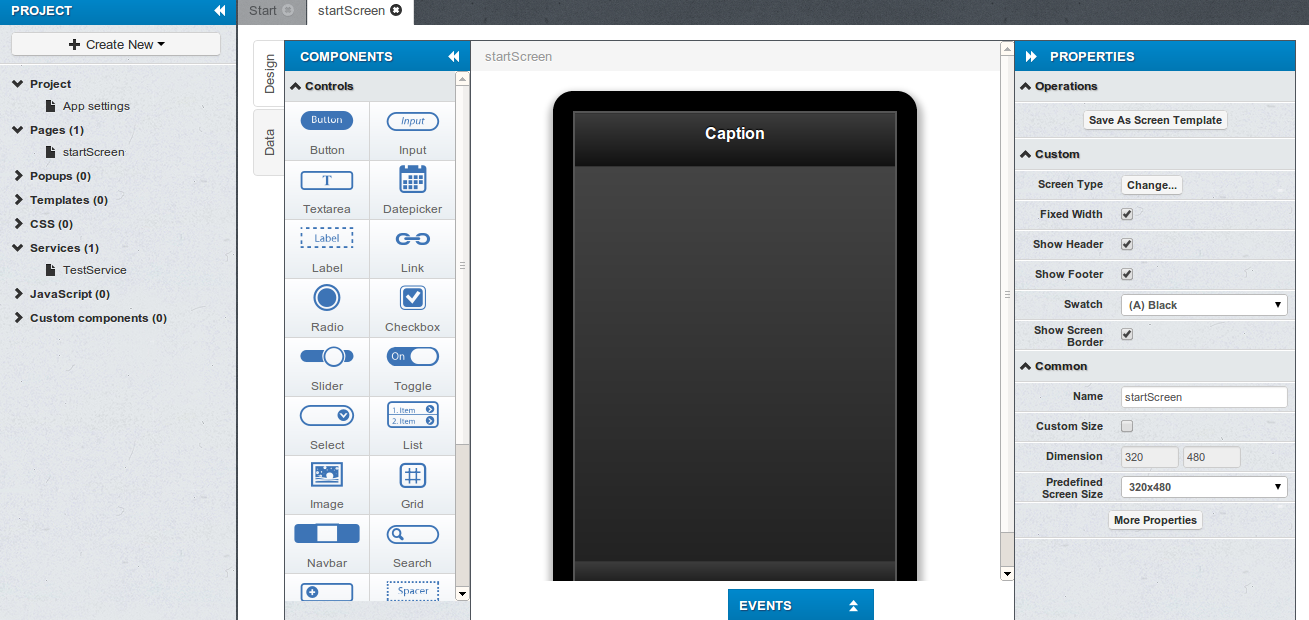
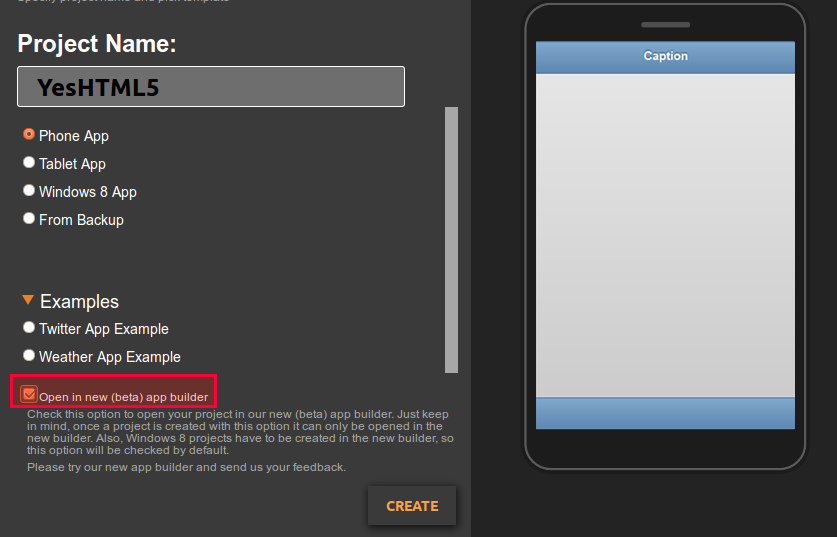
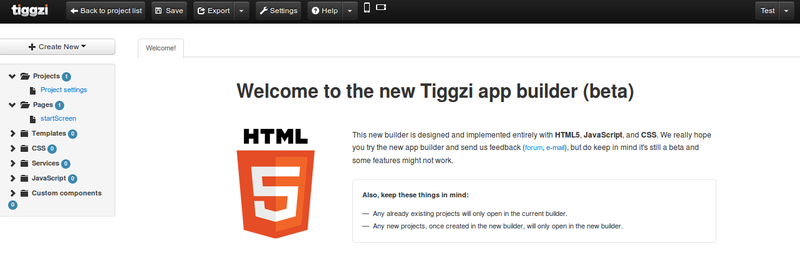
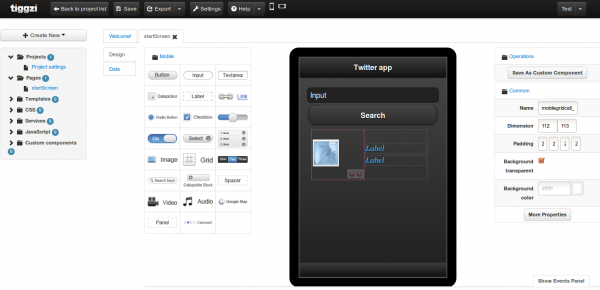
You might have noticed this but since Tuesday, November 13 when you create a new project, it opens in our new HTML5/JavaScript builder.
Our new HTML5/JavaScript builder:
We are just a few weeks from official GA and want to get as much feedback as possible from you.
Any projects created before November 13, will continue to open in the old builder (Flash). You are probably wondering what’s going to happen to your old projects? At some point very soon they will be converted and will start opening in the new builder.
Lastly, if you really still want to create a project in the old builder (although we don’t recommend it at this point), click on Create more options link.
Last week we put posted Building a Mobile Search App with Tiggzi Database tutorial that shows you how to search a database for a particular search term. The way the search worked, is that the entire word has to be matched. For example, you could enter ‘Apple’ but not ‘Ap’ to search. In this post we are going to show you how to use a regular expression to get all objects that start with a particular letter. As for our data, are going to use US States.
Building the UI
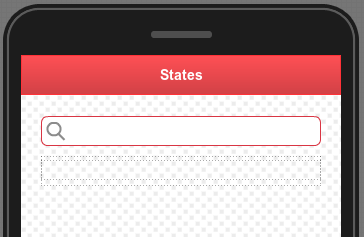
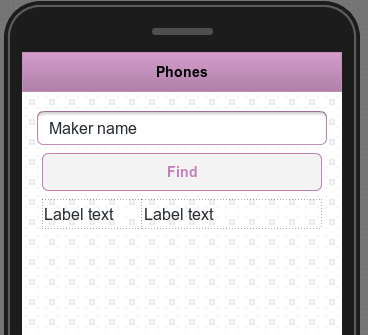
To start, the UI that we need looks like this:
For input we use a search component
Below the input we have a grid, with one column and a label inside.
That’s all we need for the UI. Let’s now create the database.
Creating a database
Create a new database by going to http://io.tiggzi.com.
Go to Collections tab and click Import button.
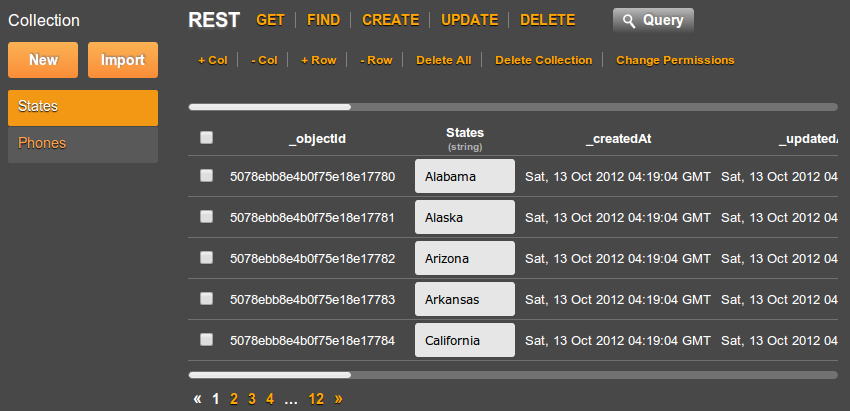
Upload States CSV file to the database. Once the collection is created, it should look like this:
That’s it for the database. Let’s now add a REST service to search this collection.
Adding a REST service
In Tiggzi app builder, select Project > Create New > Database Services
Select your database
Expand States collection and check Query service.
Click import Selected services button. A query search for States collection will be created.
Let’s test the service. As we want to make the search a little bit more flexible, we are going to use a regular expression. For where param, enter the following:
{"States":{"$regex":"^C", "$options":"i"}}
The above will return all states that start with letter C or c. “$options”:”i” is what specifies the query to ignore the case.
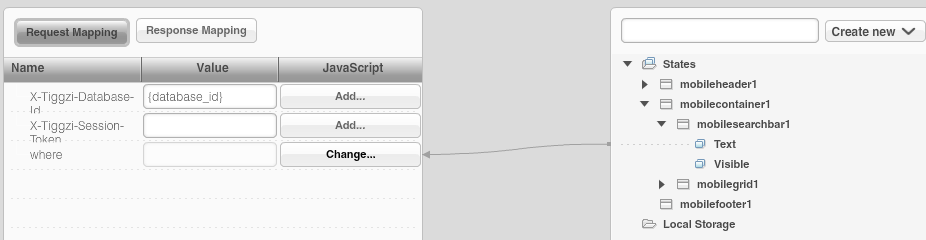
We are done with the service. Let’s move on to mapping.
The last thing we need to do is to invoke the service. Select the input search field, then Events > Add Event > Search. Add Action > Invoke Service, select the service instance.
Testing the app
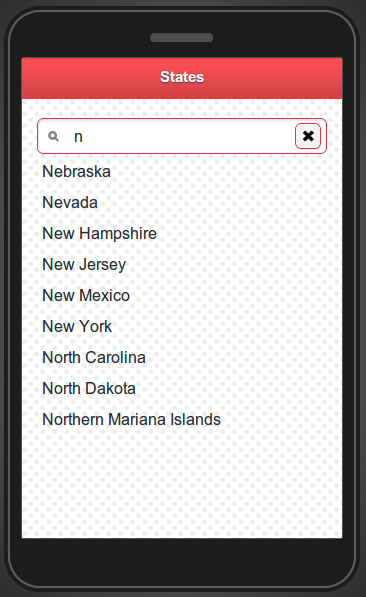
To test the app, enter any letter, for example ‘n’ and click the magnifying glass inside the search input:
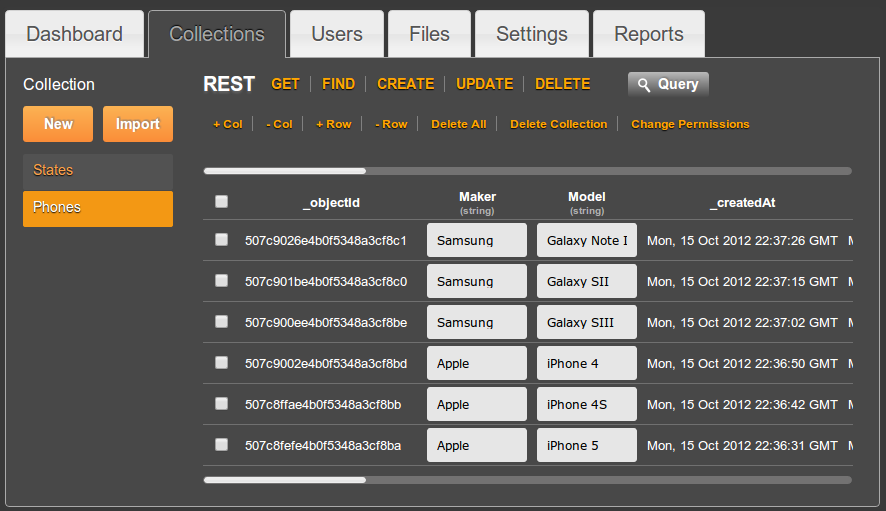
Upload Phones CSV file to the database. Once the collection is created, it should look like this:
Creating REST services to access the database
In Tiggzi app builder, select Project > Create New > Database Services
Select your database
Expand Phones collection and check Query service.
Click import Selected services button. Two services will be generated under Services folder. One is a settings service that holds the database id and the other one is the query service.
Open the service and then open Request Parameter panel. It should look like this:
Click Test. As we didn’t specify anything for where parameter, you should get all the phones in the collection.
Let’s now test the where parameter. Enter the value of {“Maker”:”Samsung”}, then click Test. You should now get only records where the maker is Apple.
Note that we don’t need to create the response parameters as the response was automatically created when we imported the services.
Adding the service to the page
Select the query service and drag and drop it over the phone frame. A box will appear on the left-hand side indicating a service instance was added to this page.
Rename the service instance to: query_phones
Mapping the service to the page
Open Data Mapping tab
Map the input component to where parameter:
Click Add and enter the following code:
return '{"Maker":"'+value+'"}';
this means any value entered from the page will be used to search the database.
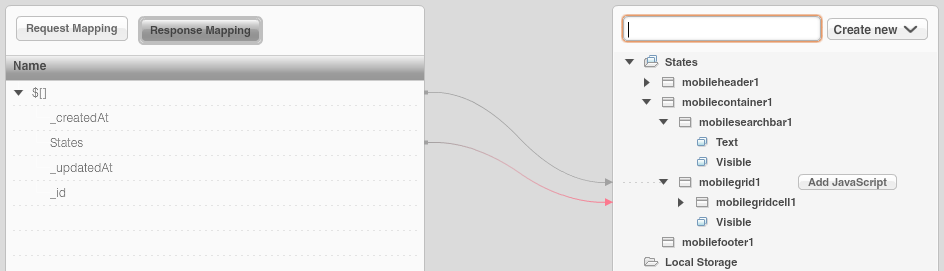
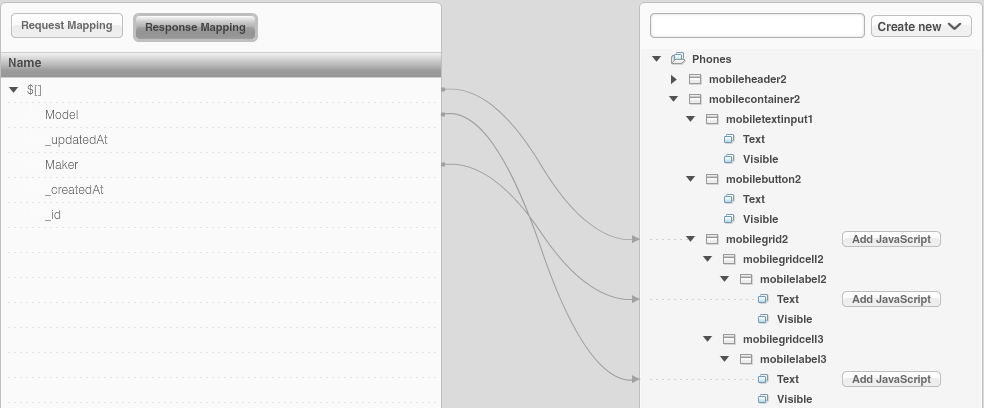
Click on Response Mapping and create the following mappings:
Go back to Design view.
The last thing we need to do is to invoke the service. Select the button, then Events > Add Event > Click. Add Action > Invoke Service, select the service instance.
Testing the app
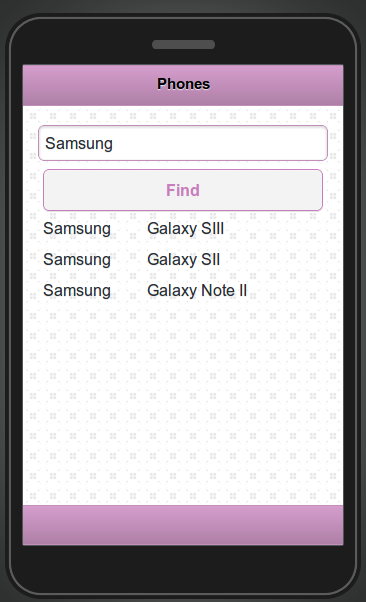
Run the app in the browser and enter either Samsung or Apple as value. For example entering Samsung will produce the following:
Displaying a message when no records are found
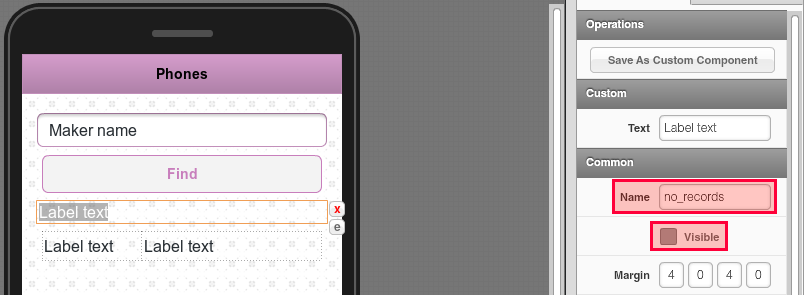
Add a new label component just above the grid
Rename the component to no_records and uncheck Visible.
Select the button, go to Events. Add a Run Custom JavaScript action with the following code:
Tiggzi("no_records").hide();
That’s to hide the label on every new search.
Now select the service instance on the page, then Events > Add Event > Complete. Add Run Custom JavaScript action with this code:
if (jqXHR.responseText == "[]"){
   Tiggzi("no_records").text("Nothing found");
   Tiggzi("no_records").show();
}
If nothing is returned, show the message.
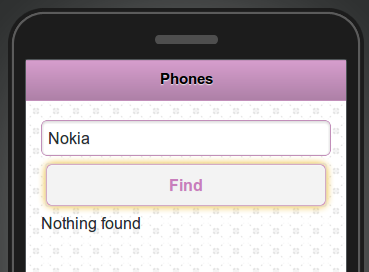
Test the app, if you enter anything other than Apple or Samsung, you should get the following:
Yesterday we told you that we launched the first beta of our new Tiggzi app builder. The new app builder is designed with HTML5, JavaScript and CSS. In addition to jQuery Mobile support, we have also added Windows 8 support. Now you can build Windows 8 apps for tablets or desktop entirely in the cloud.
When creating a new app, click More create options:
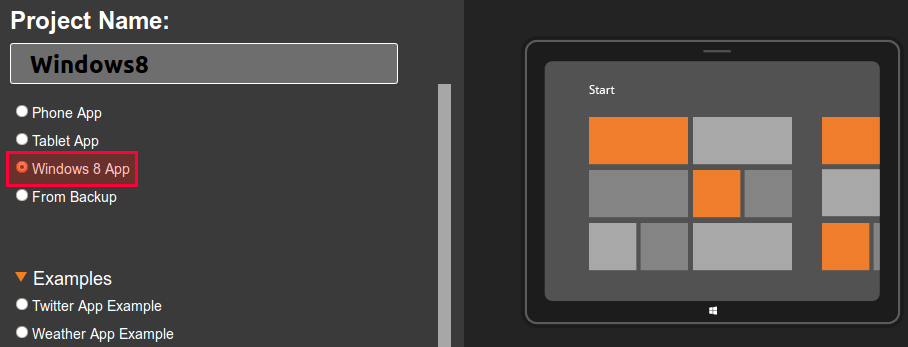
then select Windows 8 project template:
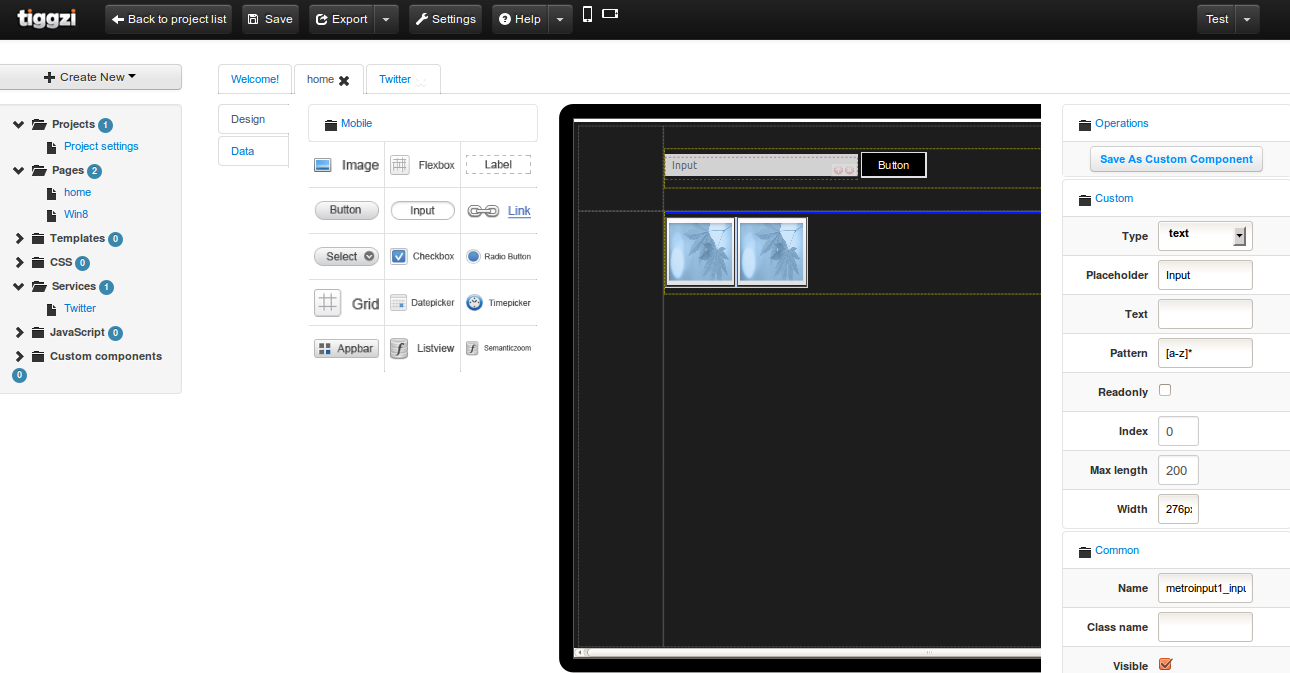
this is how the new builder looks after creating a Windows 8 app (with some components on the screen):
Do keep in mind it’s still a beta so some features might now work yet.
When you build an HTML5/jQuery Mobile app in Tiggzi, you can instantly host the app. Every plan gets hosting. Yes, even the Free plan.
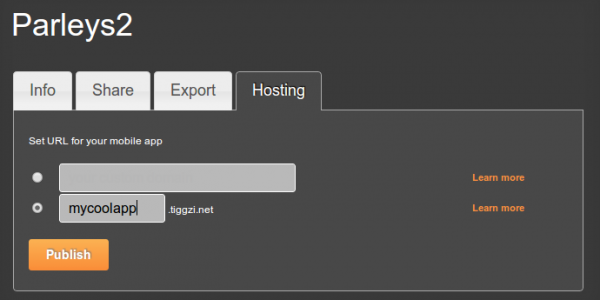
Simply go to Hosting tab. You can use app-name.tiggzi.net domain or a complete custom URL if you own a domain.
You can also publish the app right form the builder. If you don’t see that option, go to Hosting tab and convert the app to mobile web type (the default new app comes with PhoneGap. Such app cannot be published as it might be using native device features).
We got some prety cool features and updates this week.
New Projects and Dashboard Pages
We got new Projects and Dashboard (old My Account) pages.
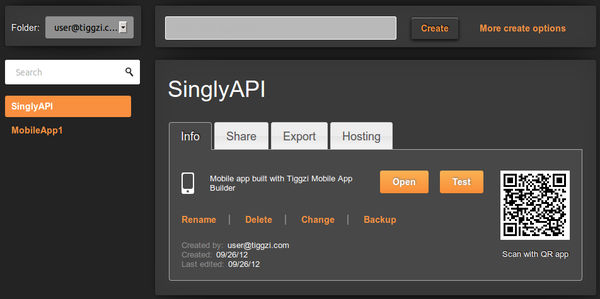
With the new Projects page, you got the list of projects and project details in one page. Project details are separated into different tabs — for easier navigation.
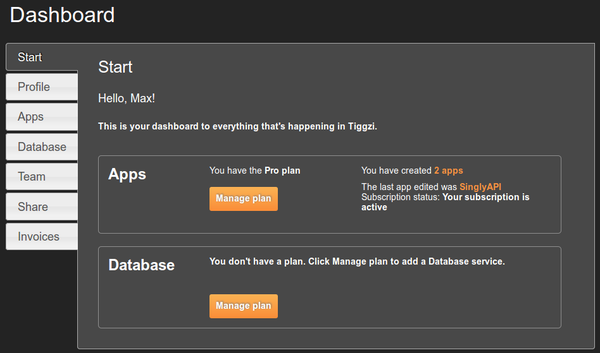
The new Dashboard page is informational dashboard into everything happening in Tiggzi, your plan information, and more:
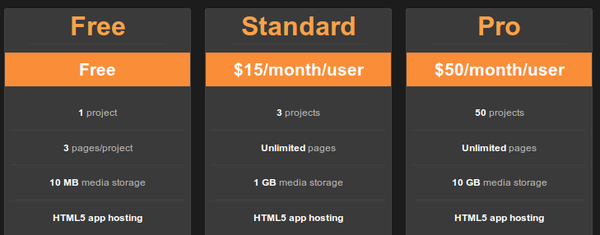
HTML5 app hosting in all plans, plus Standard plan gets unlimited pages
HTML5 app hosting is now included in every plan. Yes, even in the Free plan. Plus, the Standard plan now has unlimited pages (up from 10).
Tiggzi Backend Services
Tiggzi Backend Services are out of beta. You can check out the features and pricing. We got a pretty nice Free plan so definitely check it out. As for new features, we are working on Push and Server-side code.
Last month we released app builder-database integration. You can view the vidoe how fast it is to add a database to your app:
PhoneGap 2.0
We also upgraded to PhoneGap 2.0. All projects, old and new now get the new PhoneGap version 2.0.
Coming soon: new HTML5/JS builder beta
We have been working for the past couple of months on a really awesome new HTML5/JS builder. We are getting ready to launch the beta so you will be able to try it.
Last week we published the first version of Singly plug-in in Tiggzi. This means you can connect to Singly API in Tiggzi builder in just a few seconds. This also means you can use Singly API to connect to over 18 social networks, integrate people’s contacts, photos, locations, fitness data, and more into your app.
Here is how to get the plug-in.
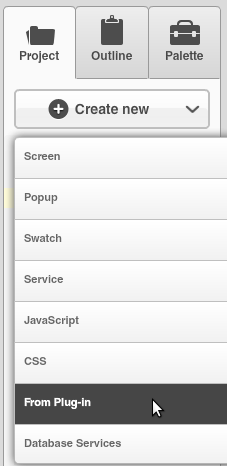
From Project view, select Create New > From Plug-in:
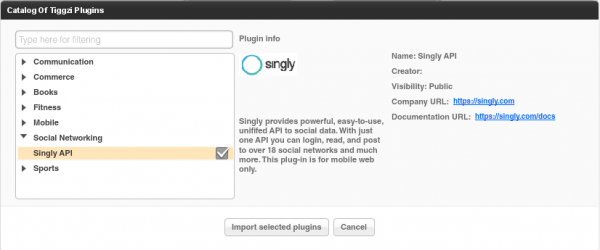
Select Singly API plug-in:
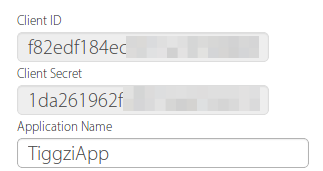
You will be asked to enter the Client ID and Client Secret. You get it from Singly.com (after creating a free account and registering an app):
If you don’t enter the values during import, you can always set these ids by going to Project/Services/SinglySettings.
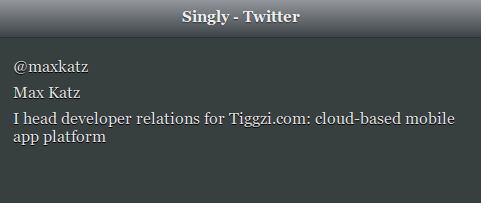
Once the plug-in was imported, go to Project/Project Profile and set SinglyStart to be the first page to launch. Go ahead the launch the app. You will be asked to login to Twitter (that’s the default service set) and then should get something like this (it will be your Twitter information):
To change the service, open SinglyStart page, select the button and open Run Custom JavaScript action (Events tab). You will be able to see the initial request to Singly and the place to change the service.
Give it a try and let us know what you think. One thing to keep in mind, the current version will only work as a mobile app (it will not run as native). I’m working with Jeremie Miller form Singly to support hybrid apps as well as other APIs. Do let us know if you would like us to add a specific feature.