Posted: January 24th, 2013 | Author: max | Filed under: Features, New release | Tags: features, release | 1 Comment »
We just added some really cool features to Tiggzi Platform. Check them out!
New Source view
As we continue to make Tiggzi Platform enterprise-level, just just added a Source view where you can see and open the actual files behind your app. Right now the files are opened as read-only but we are working on allowing you to modify them as well.
jQuery Mobile themes
We got all our custom themes back and you can also create new themes using the jQuery Mobile ThemeRoller tool. Simply create your theme in the tool, download and then upload to Tiggzi. It’s that simple.
jQuery Mobile ThemeRoller site:
Once you create a new theme, select Create New > Theme and upload the theme you created.
Android permissions
You have been asking for this feature and now it’s here. Customize the permissions for your app before building a binary.
Binary build errors log
You no longer need to email support to find out why the binary build failed. You can now view the error and try to fix it:
New UI components
We added two new jQuery Mobile components, Grouped Buttons and Collapsible Set:
Pointer and Array types in database
On the Backend Services side, we added two new data types to the database: Array and Pointer:
New tutorials and getting help
Don’t forget to check our new tutorials and as always, if you have any questions let us know via email, forum or @tiggziapps.
Posted: January 14th, 2013 | Author: max | Filed under: API, Plugin | Tags: API, Plugin | No Comments »
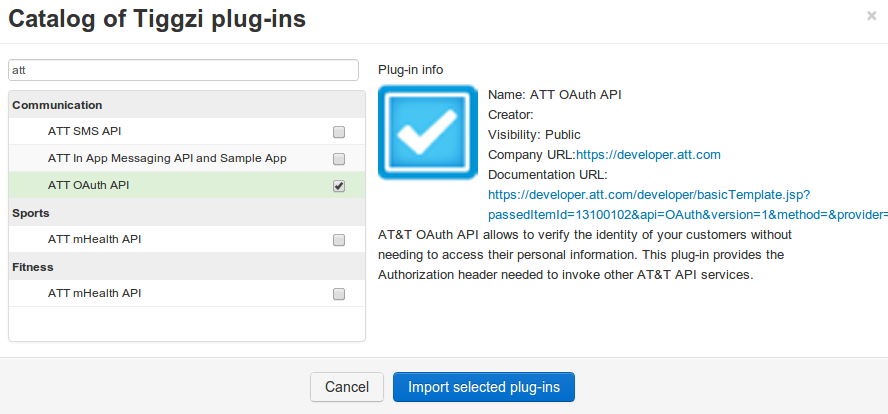
To make it easy to build apps with AT&T API, we just added the AT&T OAuth API Plug-in. The plug-in sets up the OAuth 2 authentication by returning an access token which then can be used to invoke any other AT&T API.
To import the plug-in, select Create New > From Plug-in > ATT OAuth API:
Once the plug-in is imported, open ATT_Settings file:
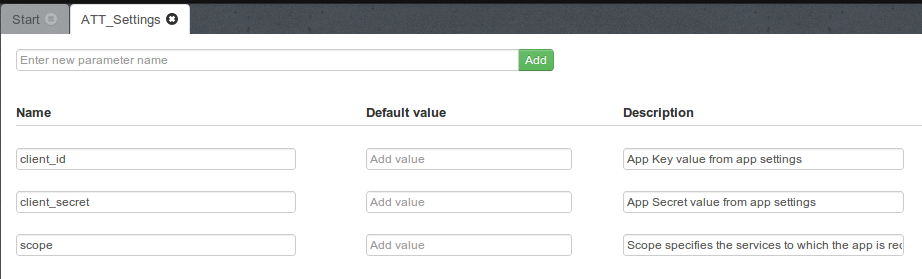
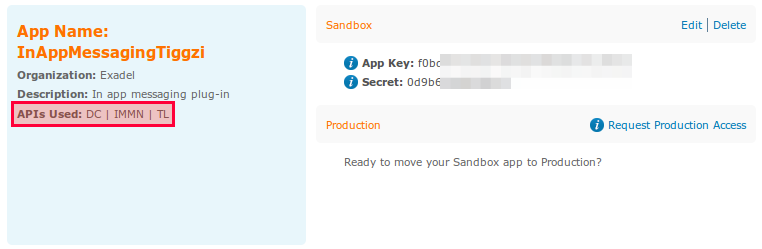
and set the client_it, client_secret, and scope. The client_id, and client_secret will be available once you register an app at http://developer.att.com. The scope value depends on the API you are going to use. For example, if you the Location API, it will be TL. Refer to docs for the correct scope for each API.
Here is an example of a registered app with three scopes (in red):
One more thing that needs to be set is the OAuth 2 redirect (or callback URL) in app settings
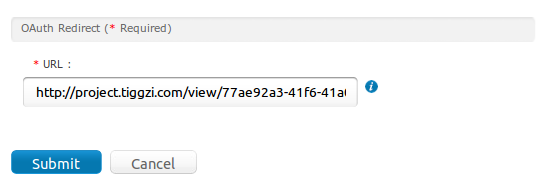
For the callback URL to work correctly, also do the following in the Test window (upper right):
- Uncheck Open in mobile frame
- Make the app pulbic
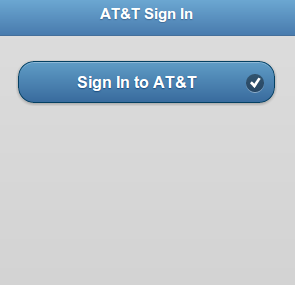
When running the app and you are not signed in into AT&T, you will see this page:
when signed in, you will see the access token:
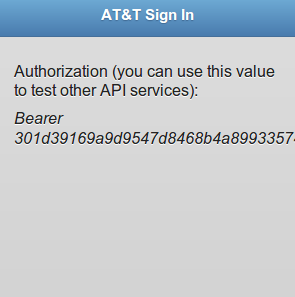
The access token is also stored into local storage so you can use it to invoke other AT&T APIs.
Posted: January 14th, 2013 | Author: max | Filed under: API, Plugin | Tags: API, Plugin | No Comments »
Learn how to add and send in app messages from your number with new AT&T In App Messaging API Plug-in.
Posted: January 4th, 2013 | Author: max | Filed under: API, Plugin | Tags: API, Plugin | No Comments »
Best Buy Products API and Sample App plug-in provides a simple, REST-based interface for entire product catalog - past and present. This includes pricing, availability, specifications, descriptions, and images for over a million current and historical products.
Adding the plug-in to your app
To add the Best Buy Products API and Sample App plug-in, from Tiggzi builder, select Create New > From Plug-in. Open Shopping, then select Best Buy Product API:
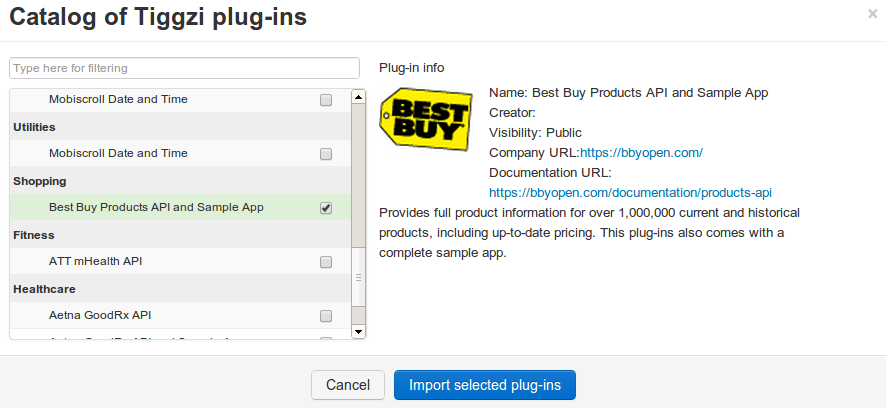
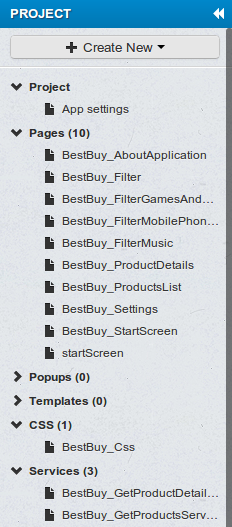
Click Import selected plug-ins. The plug-in will be imported and you will see all its files in the Project view:
Before you run the app, we need to enter the Best Buy API key. Open Services/BestBuy_Settings file and enter your API key:
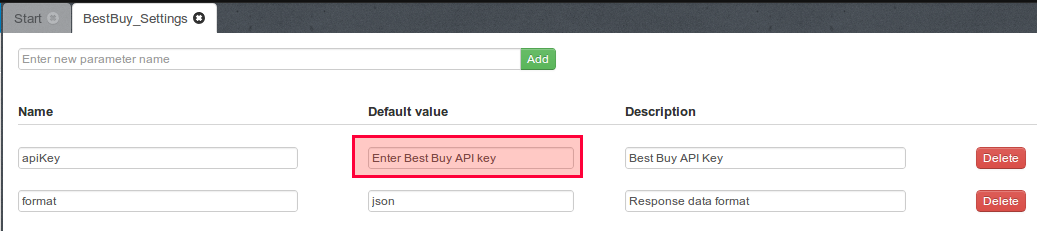
If you don’t have an API key, get it from Best Buy.
Running the sample app
You can now launch the app by clicking the Test button (in the upper right corner). If a blank page opens up, go to Project/App settings and set the Start Page to BestBuy_StartScreen.
The starting page of app contains the main menu bar at the bottom of the page and the navigation elements to the catalog of products as shown below:
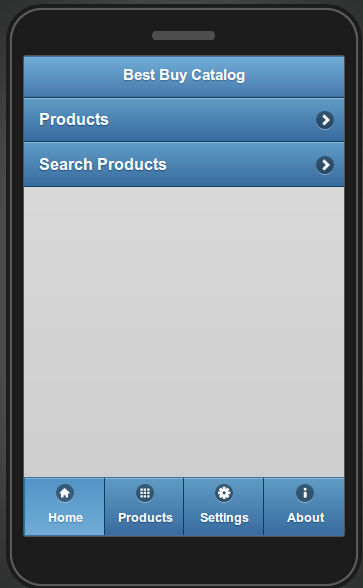
The plug-in allows you to access the categories list to make the search of products easier. Each category contains search attributes for each product type (only music search is supported in current version). Here is an example performing search via Product Categories:
Click on the Products button on the Home page. The list of categories is displayed on the Products page:
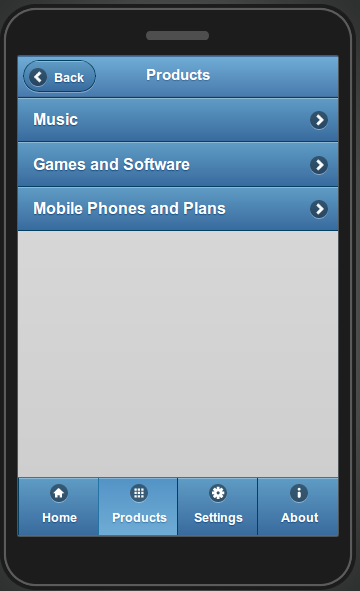
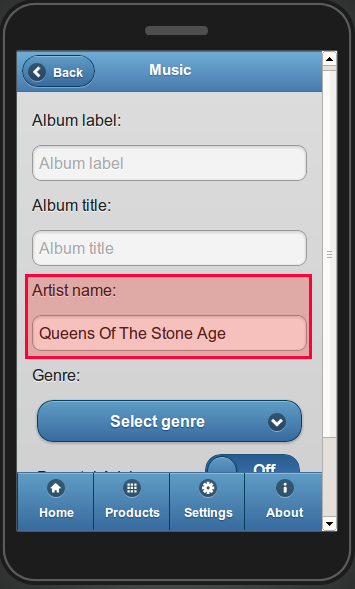
Click on the Music button. The search attributes for music products are displayed on the page:
- Album label (text field)
- Album title (text field)
- Artist name (text field)
Genre (drop-down) contains four options:
Parental Advisory (check box)
All the attributes are optional.
Enter any search criteria (e.g. Artist name: Queens Of The Stone Age) and click on the Search button:
The results are displayed on the Catalog page. This page also contains the Keyword filter field and the sorting radio-buttons. By default the results are sorted by Name in ascending order:
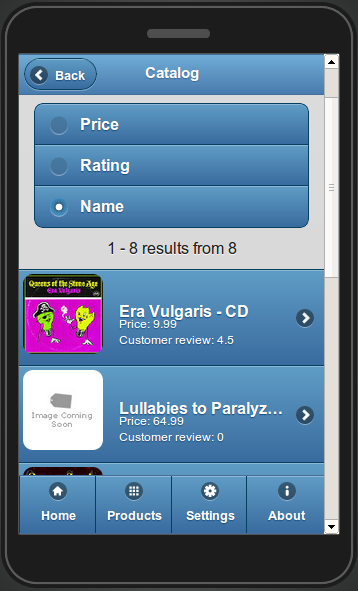
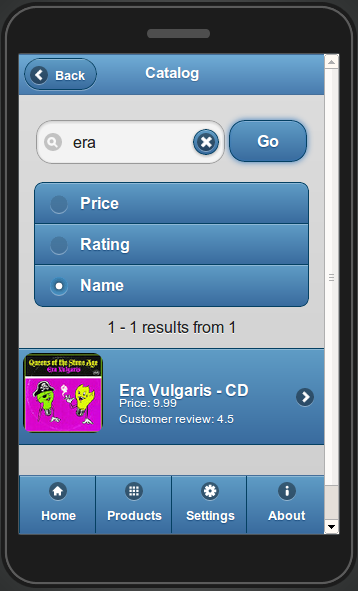
To filter your results use the Keyword field. Type in the Keyword field ‘Vulgaris’ and click on the Go button. To erase the field use the Cancel button as shown below:
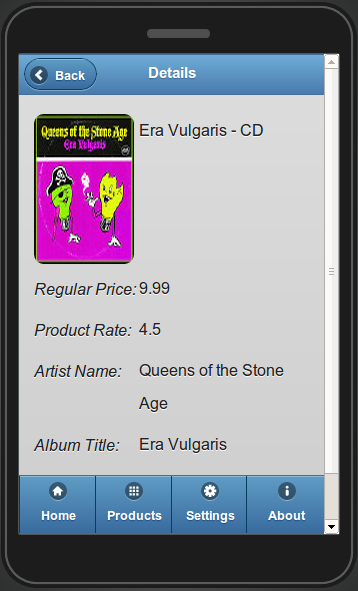
Click on the Era Vulgaris item to get the product details. The page renders the image preview to the item and the available attributes as shown below:
Click on the Back button in the upper left corner to navigate back through all the described steps.
You can use the Main Menu bar to navigate quickly to the Home Page or/and the Products page.
On the Home page, click on the Search Products button. This performs the defaults search without any search attributes. When invoked – all the available item are displayed in the list. If no required items found – ‘No results found’ message renders.
REST API services used in the plug-in
Now that we’ve seen how this sample app works, let’s dig deeper to see how the Best Buy Products API is exposed in Tiggzi platform.
The following REST services are used for getting information from Best Buy Products API:
BestBuy_GetProductsService service is used for getting the list of required products. REST service Settings display the URL, and other settings:
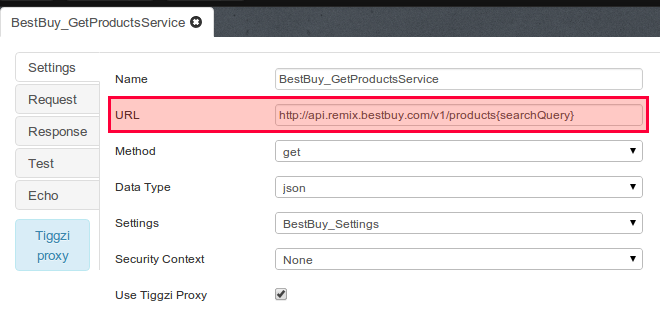
The {searchQuery} will be set when the app is running, based on user input.
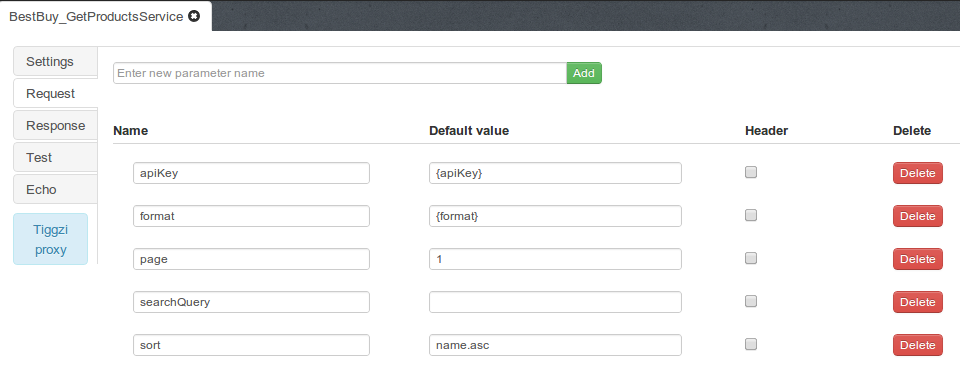
Request tab shows the request parameters defined in the service:
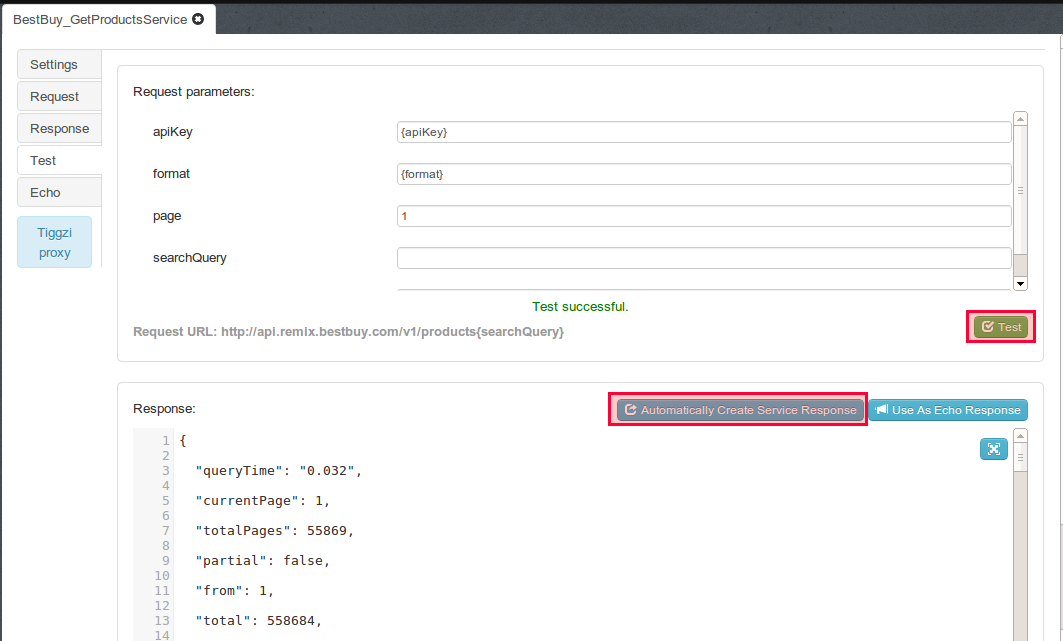
Response parameters are automatically created after doing a service test (in Test tab):
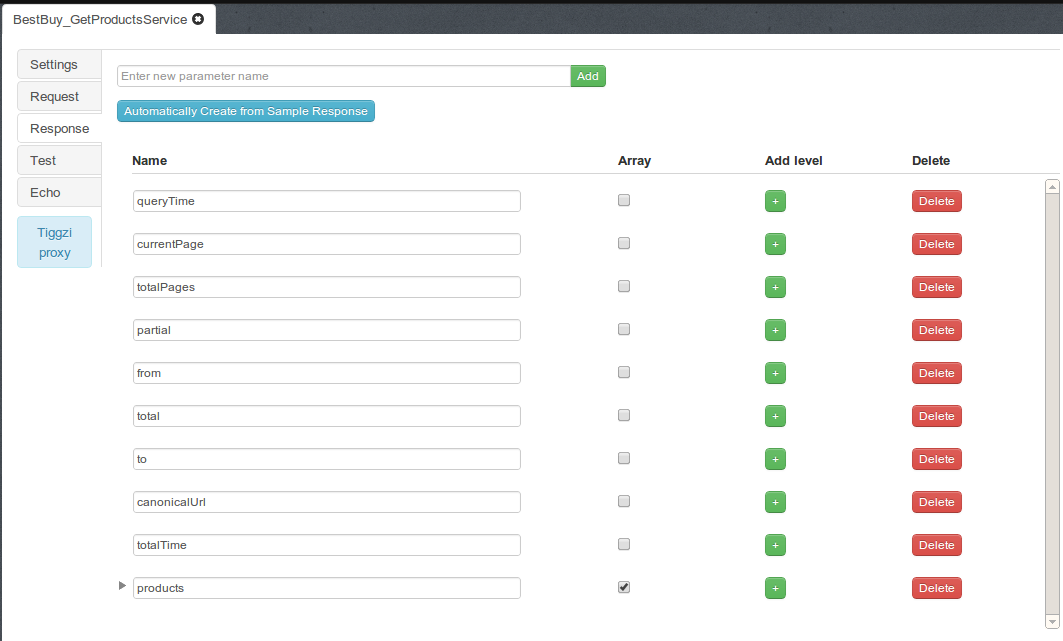
Response parameter:
All other services are set in the same way.
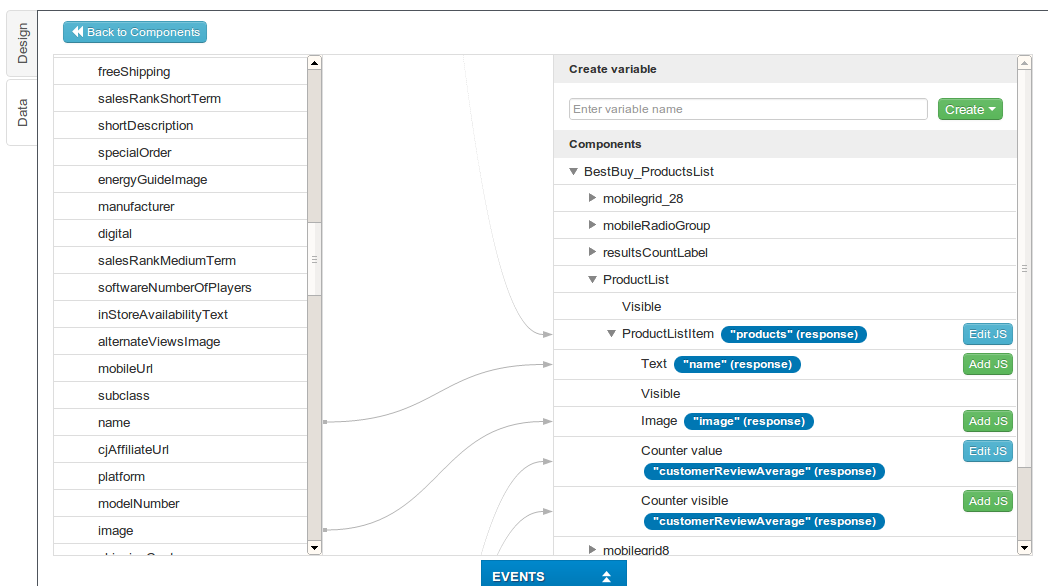
Once a service is added to the page, it is then mapped to the page (request and response):
Posted: January 2nd, 2013 | Author: max | Filed under: API, Plugin | Tags: API, Plugin | No Comments »
How the plug-in works
 Aetna GoodRx API and Sample App plug-in can be instantly added to any new or existing app and allows a user to search, navigate, and compare prices for drugs. Aetna GoodRx is offering RESTful services that help to find the lowest retail cash price as offered by a national chain pharmacy for a given pharmaceutical. In addition, user will receive a URL for each result that will navigate to the page in the GoodRx mobile web experience that will display the pharmacy that is offering that price, and even find the closest branch to on their current location.
The ready-to-run app makes it super easy to start using the API. To add Aetna GoodRx plug-in:
- From Tiggzi builder, select Create New -> From Plug-in
- Open Healthcare, then select Aetna GoodRx API and Sample App
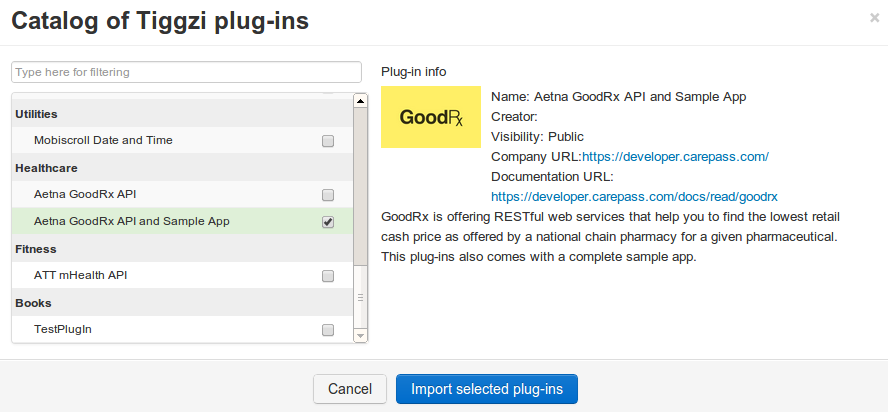
Using GoodRx API requires an API key which you can get from http://developer.carepass.com. To enter the API key, open Services/Aetna_GoodRx_Settings file:

Once the API key is set, click on the Test button (upper right corner) to launch the app in the browser. The first page looks like this:
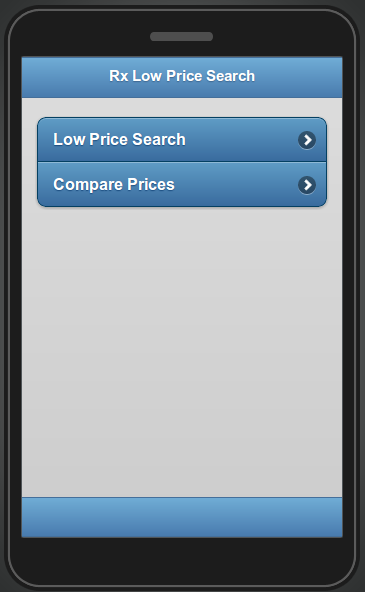
Clicking on Low Price Search link, will show the following page:
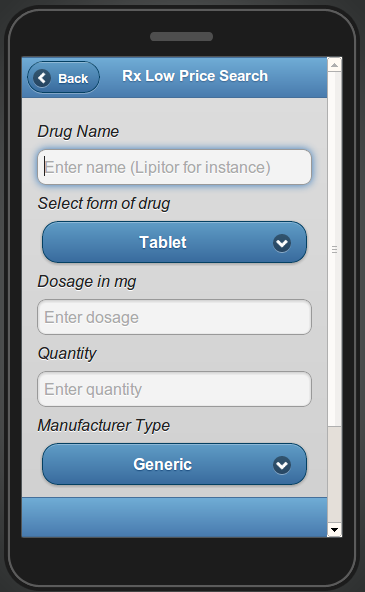
The Low Price Search page contains the search attributes for drugs as follows:
- Drug Name (open text field, required)
- Select form of drug (drop-down, optional).
- Possible value:
- Tablet
- Capsule
- Injectable
- Liquid
- Dosage in mg (optional, requires digits)
- Quantity (optional, requires digits)
- Manufacturer Type (drop-down, optional)
- National Drug Code Directory identifier (open text field, optional)
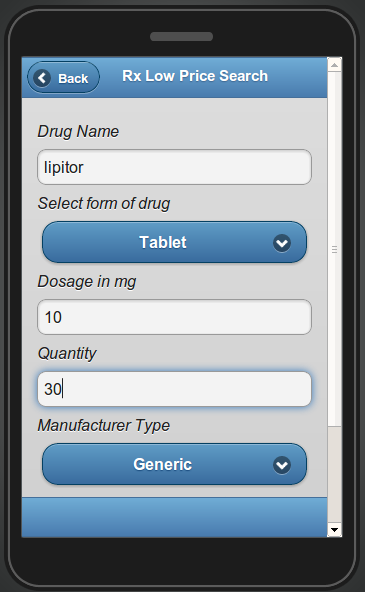
To test the app, enter the following values shown below:
Clicking Search (at the bottom of the page), will result in the following page:
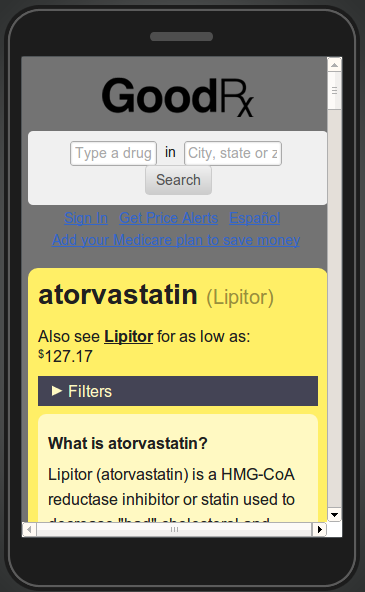
The page shows information about the drug as well as information (scroll down) where it can be purchased.
Inside the plug-in
Now that we’ve seen how this sample app works, let’s dig deeper to see how the GoodRx API is exposed on the Tiggzi platform.
The following REST services are used for getting information from GoodRx API.
Aetna_GoodRx_LowPrice service
Aetna_GoodRx_LowPrice is used for getting the list of the lower prices of the requested drugs. The URL and the main settings of the service as shown below:
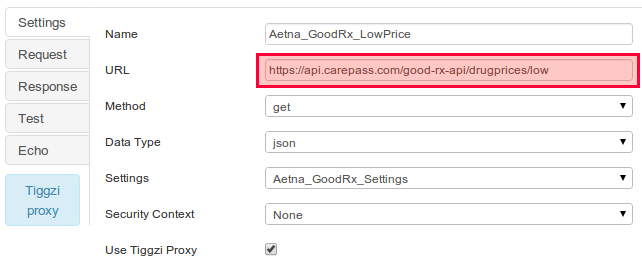
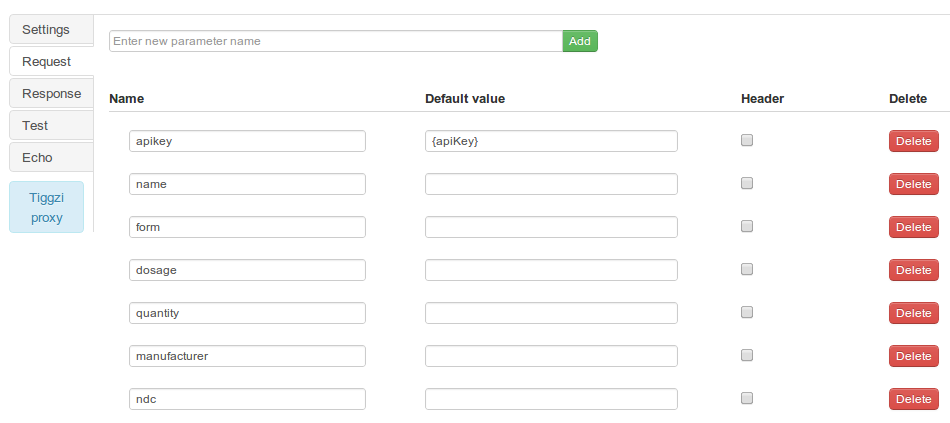
The request parameters are displayed under the Request tab:
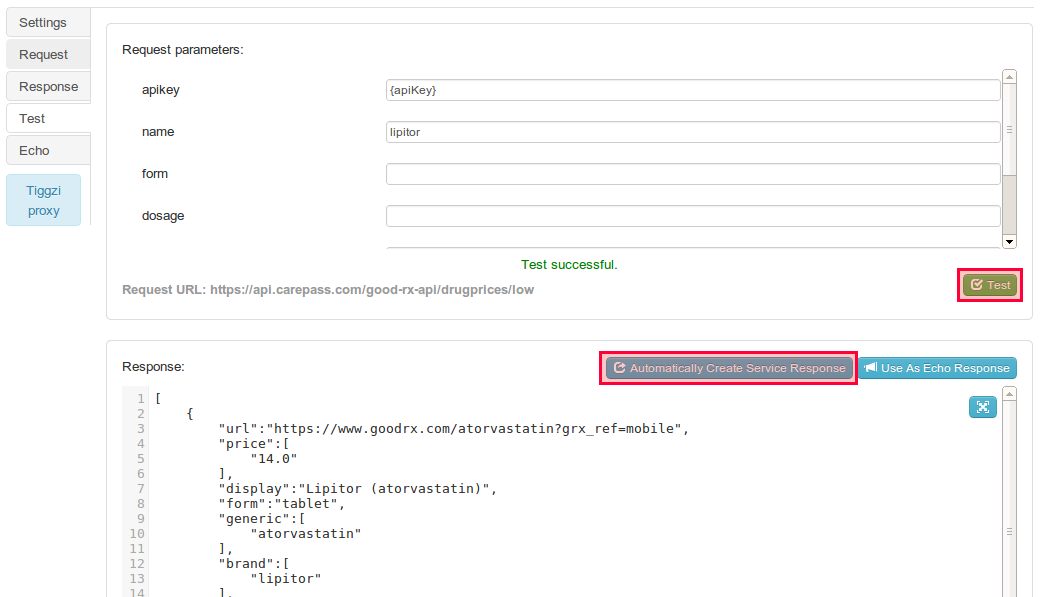
To generate the response parameters navigate to the Test tab, enter the name of the drug and click on the Test button, and then click on the Automatically Create Service Response button as shown on the screen below:
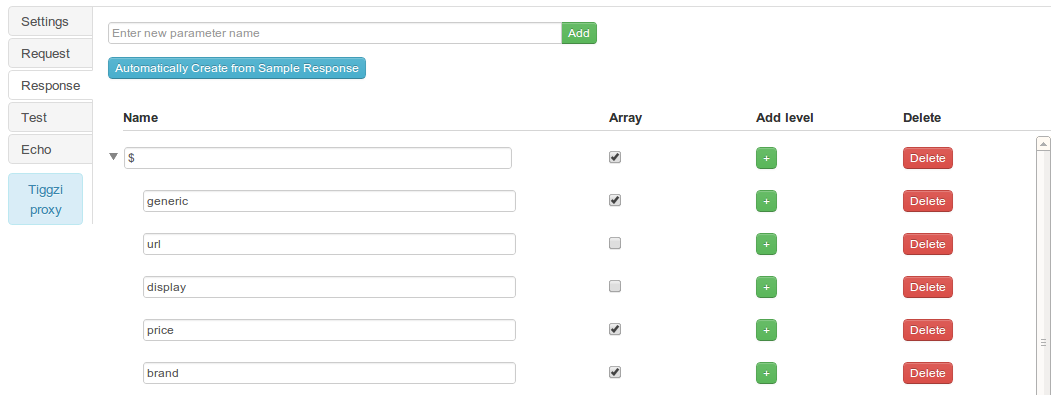
All the created response parameters are displayed under the Response tab:
Aetna_GoodRx_Compare service
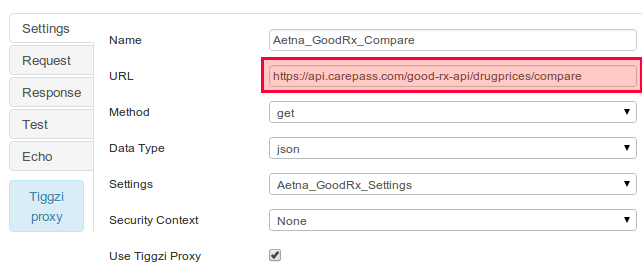
Aetna_GoodRx_Compare is used for getting the list of the lower prices of the requested drugs and available stores. The URL and the main settings of the service as shown below:
Aetna_GoodRx_Settings service
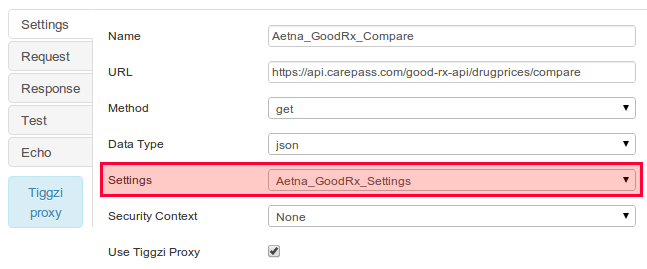
This service holds the API key. You will notice that both services use this service in Settings:
Posted: December 28th, 2012 | Author: max | Filed under: Tutorials | Tags: tutorials | 6 Comments »
Try our new tutorials:
Posted: December 20th, 2012 | Author: max | Filed under: Articles | Tags: article | 1 Comment »

Guest Post by Ambika Pajjuri from KidSenz
Hello fellow Tiggzi developers. I am founder of KidSenz, a company that delivers news videos and blogs in a kid safe environment, and wanted to share my experience with Tiggzi
I was looking for a product that let me bring my app to life fast and in the most cost effective way. Instead of learning native programming languages and environments, I wanted to use HTML5. The idea was to build a Beta product as soon as possible to help figure out what works and doesn’t so we could pivot and iterate fast, before launching into production.
I tried a few tools including Sencha, Brightcove and Tiggzi that enable the use of HTML5 for mobile app development. As a novice to mobile apps, I found Tiggzi to be the easiest and most user friendly development environment.
The features I found very useful include:
- Tiggzi’s drag and drop, re-size, element nesting capabilities and built-in defaults significantly reduced the learning curve so I could focus on the business problem.
- I didn’t have to deal with the CSS since it was generated. This enabled me to focus on creating a good app rather than the code behind the scenes.
- Tiggzi provides out of the box support to attach to various backend options such as SendGrid, Twilio, Parse, AT&T, and Singly via REST API - this is in addition to support for their own database.
- Support for custom Javascripting and HTML that makes it easy to add functions when out of the box support does not exist.
- Automated generation of the iOS/Andriod/Windows apps to get them to the app-store/marketplace with Phonegap
- Easy to use test and demo environment
- Access to the native capabilities via Phonegap - I have not used this capability so far.
- Cloud based development and backup
The KidSenz app I created delivers a number of educational videos in various categories along with associated blogs and a simple quiz (more details when we launch since we are currently in Beta trials).
Working with Tiggzi has been a great experience. The documentation has been good with plenty of examples. What I like best is the availability of examples to work with various backends. Last but not the least, support from Tiggzi has been outstanding. They respond quickly to issues and helped ease qualms about working with a cloud based system.
Posted: December 19th, 2012 | Author: max | Filed under: API, Database, jQuery Mobile, New release, PhoneGap, Tutorials, Windows Phone | Tags: Database, jQuery Mobile, PhoneGap, release, tutorials, Windows 8 | No Comments »
Windows 8 Support
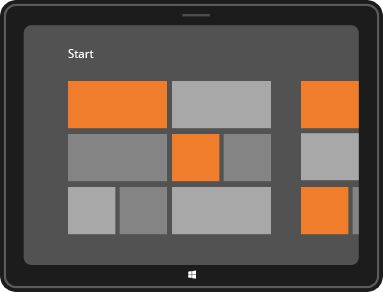
Tiggzi’s new HTML5 app builder has been the default builder for the past couple of weeks and we continue to update it with new features. One such feature is new Windows 8 support. In addition to jQuery Mobile/PhoneGap apps, you can now build Windows 8 apps with native support such as Snap View, Search Charm, Share Charm, and Live Tile.
To create a new Windows 8 app, click the “More create options” link from the Apps page and then select Windows 8 App as the app type. Try our Windows 8 app tutorial.
jQuery Mobile 1.2
We also upgraded to a much better jQuery Mobile version 1.2.
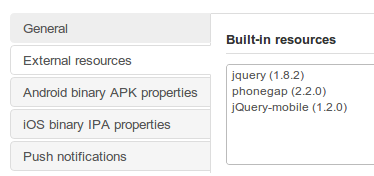
PhoneGap 2.2
We also upgraded PhoneGap to version 2.2. This means Tiggzi’s cloud build has also been upgraded to PhoneGap 1.2:
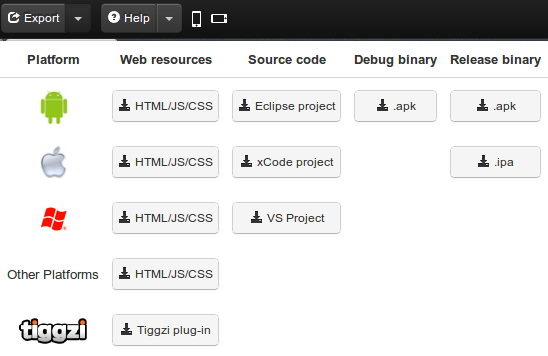
If you use Tiggzi Mobile App Tester for Android - go and grab an update so it also uses the latest PhoneGap version.
Push Notifications
A long requested feature - Push Notifications feature has been added to Tiggzi Backend Services.

Want to try it? Try our new Push tutorial.
New Tutorial: Building a ToDo App with Tiggzi Backend Services
Build this app and learn how the app builder is fully integrated with backend services.
Posted: December 8th, 2012 | Author: max | Filed under: Events, Webinar, Windows 8 | Tags: events, webinar, Windows 8 | 3 Comments »
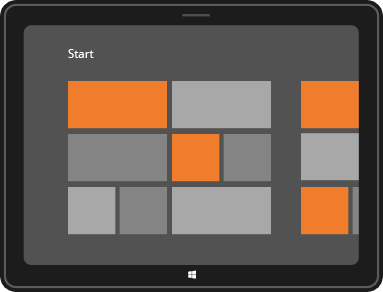
The latest Tiggzi mobile app platform allows you to build Windows 8 apps for tablets and desktops with native Windows 8 support. This support includes special Windows 8 capabilities such as Snap View, Search Charm, Share Charm, and Live Tile! Join our webinar to learn how build Windows 8 apps with Tiggzi.
When: Thursday, December 13, 11am Pacific Time
Register: https://www1.gotomeeting.com/register/611432329.