Today, we’ll be having a briefing for our beta users of Tiggr Mobile Apps Builder. Becoming a beta user and participating in our community briefings is a great way to influence and guide the development of a useful product and make it even more useful.
It’s easy to become a beta user. Here are three ways:
If you don’t already have a Tiggr account, you can sign up right from the home page using the button in this block:
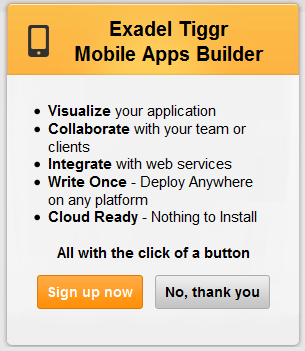
When you sign up for any Tiggr Prototypes Builder plan and click on the activation link, you’ll be presented this first time with a pop-up giving you an opportunity to join the beta:
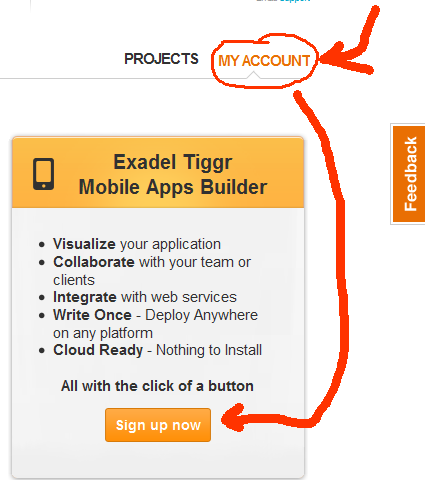
If you already have an existing Tiggr account, you can become a beta user by going to My Account and clicking on the sign-up button:
You’ll have a “pending” status at first, but you should only have to wait a few hours before you become activated.
HTML5 introduces a handy new feature for input elements. Using placeholder attribute, you can place a slightly greyed out label inside an input field. When you click on the field and enter text, the label clears. If you delete the input, the placeholder labels appears again. Here is an example (assuming you are using HTML5 complaint browser):
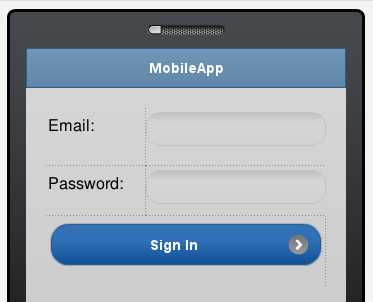
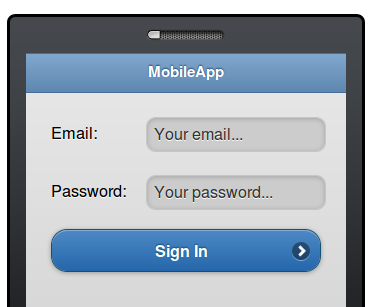
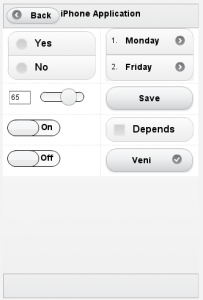
You can do the same thing in Tiggr Prototype Builder or Mobile Apps Builder. Now, it involves a little trick but we will make it much simpler in the near future. Let’s say we start with a screen like this (editor view):
Click the screen outside the phone area, switch to Events view
Click Add Event and select Load
Click the + sign to add an action and select Set HTML Attribute
Component name: find the first input component. Its name should be set to something like ‘mobileinputtextX’ (unless you renamted it)
Property name: placeholder
Value: enter any text you want to see in inside the input
Click OK
Repeat the same for the second input component.
Click Web Preview to view the app in Web browser
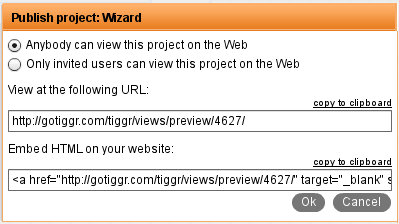
To view on your phone, select Web Preview > Configure and select Anybody can view this project on the Web. The open the URL shown on your phone.
Try out this app or via QR code below:
Yes, it’s too many steps to add such functionality. It’s really just a workaround for now. We will make it possible to set any attributes from Properties view, without needing to add event and action.
The state of Mobile Web development today is probably what was traditional Web back in 1996. Many companies is racing to create mobile presence, be it in the form of a native applications or mobile Web applications. To set the native vs Web debate a side for now, there is a tool to help you prototype and test your mobile Web applications. You can even use the resulting HTML as a starting point for the application. The prototyping tool is Tiggr. With Tiggr, you can create, share and preview interactive Web and mobile HTML prototypes in a browser. Read more.
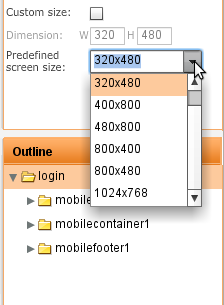
Creating Web and mobile interactive HTML prototypes in Tiggr is simple. But what about the iPad (and other tablets)? Well, turns out it’s pretty simple as well. All you need to do is change the prototype screen size to iPad’s (1024×768):
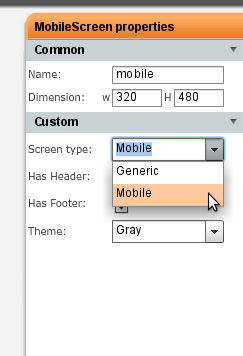
To start your prototype for iPad, don’t forget to switch Screen Type to Mobile.
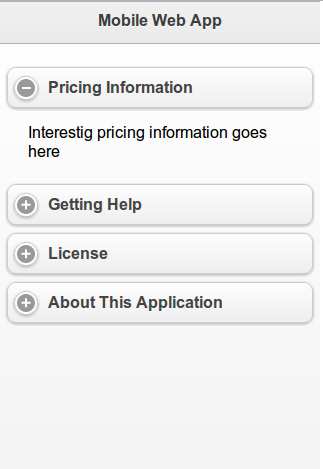
Last week we pushed Tiggr version 1.2.4. Besides bug fixing, we added a new mobile control: Collapsible Block. You can place any other controls inside and the block is collapsible in design as well as in Web Preview. See how it actually looks in a browser (try to expand/collapse the block).
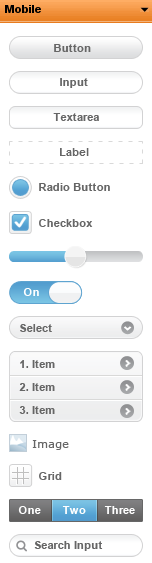
With Tiggr 1.2.3 release this week, we have added two new mobile components based on jQuery Mobile. The two components are Navigation Bar and Search Bar. They are the last two components in this screen shot:
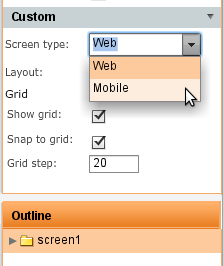
To switch between Web and Mobile prototypes, click anywhere in the whiteboard and in Properties view select the screen type:
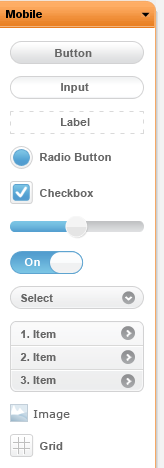
We just released Tiggr version 1.2.1 and the biggest new feature is mobile palette which lets you build mobile prototypes and of course preview them. Mobile controls are based on jQuery Mobile. Other new features are reorder screens with drag and drop, preserve ratio for uploaded images, round corners for components and component duplicate option.
To see the entire list of features, just go to http://gotiggr.com. For any questions, suggestions and feedback, go to Tiggr forum. Let’s review all the new features in this release.
Mobile palette and prototypes
With mobile palette based on jQuery Mobile controls, you can now create prototypes for iPhone, Android, BlackBerry or any other mobile device and preview them in any browser (of course we recommend a mobile browser). To activate the mobile palette, switch Screen Type to Mobile in screen properties and get jQuery Mobile based controls:
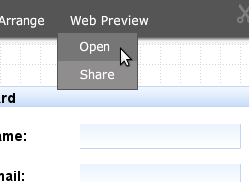
Use the grid control to help you with layout and don’t forget that you can always preview the mobile prototype by selecting Web Preview/Open: Read the rest of this entry »
Tiggr whiteboard was created using Flash. Why did we use Flash and not HTML? Well, today Flash is still the more powerful and flexible solution for this particular job. We knew that today we would have to do a lot more work to create the same functionality in HTML5. But, it’s something we are considering for the future. So, if you try to access Tiggr from iPad, well, you know what’s going to happen (Thanks, Steve). But, not everything is lost! One of the unique and rather powerful features in Tiggr is Web Preview. Web Preview generates standard HTML/JS/CSS and allows you to preview the prototype in any browser, any mobile device and yes, even on iPad and iPhone. This makes it possible to send prototype Web Preview to anyone and ask for their feedback. Isn’t’ this cool? Your boss or customer sitting in a coffee shop, airport, or anywhere else with their laptop, mobile phone or iPad can now review the prototype with just one click! Tiggr Web Preview is interactive, you can click on various controls to open them up such as calendars and navigate between pages.
And one more thing, we are coming with a specialised mobile palette based on jQuery Mobile components. You will soon be able to build prototypes for mobile devices!
First, select Web Preview/Share and choose who can view the prototype:
Then, select Web Preview/Open
A new page will open (click the link below to see it in action). Go ahead and open this link on Android, iPad or iPhone. Try it!
http://gotiggr.com/tiggr/views/preview/4627/