Posted: August 21st, 2012 | Author: max | Filed under: API, Database, Features, Mobile Backend, New release | Tags: API, Database, features, release | 6 Comments »
We just released some really awesome features in Tiggz!
App Builder Database Integration
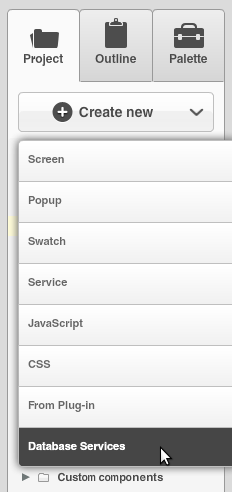
In early July we launched Tiggzi Database where you can store app data. Now we have launched database integration in our app builder. This means you can point to a specific database, select the collection(s) you want to use and automatically generate all the REST services. To create a services from database, select Create New > Database Services:
Next select the database:
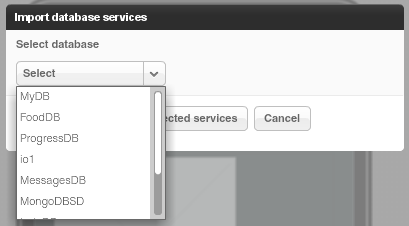
Once the database is selected, you can select the services for which you want to generate REST services.
The first section creates REST services for User management.
The second section lists all the collections you have in current database. You can then select which actions (Create, Delete, etc) you would like to create for a particular collection:
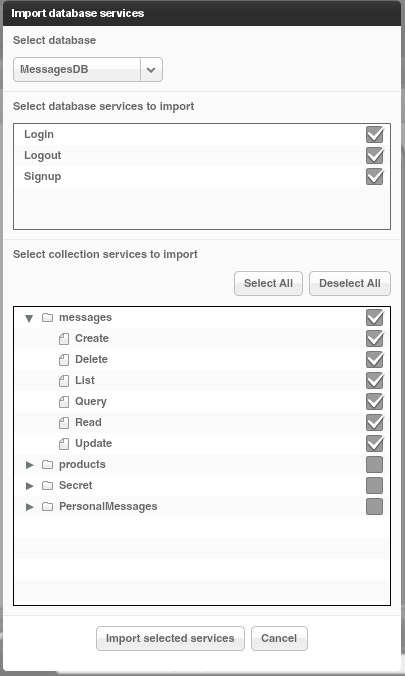
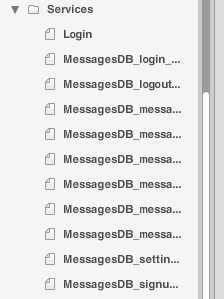
When you click Import selected services button, the following REST services will be generated:
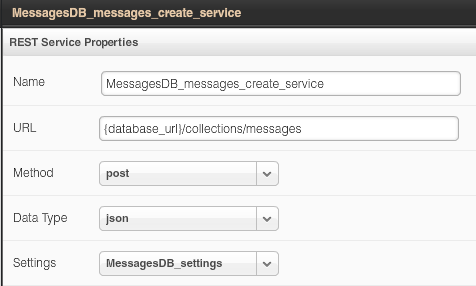
For example opening the service for creating a new message looks like this:
The request and response parameters are also generated. Here is a screen shot of request parameters to create a new messsage:
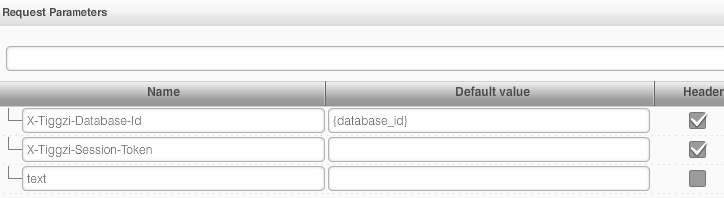
Isn’t this awesome?
File API
We continue to add new features to Tiggzi Backend Services by adding File API. You can now easily store files in the database. When you open any database, you will see a new Files tab:
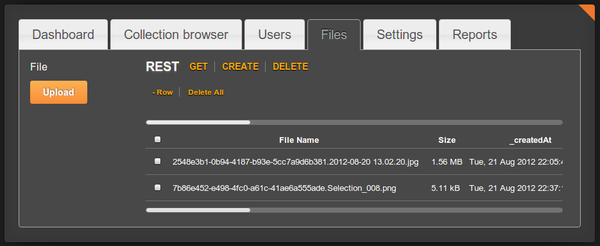
Read more about the File API.
Project Export/Import
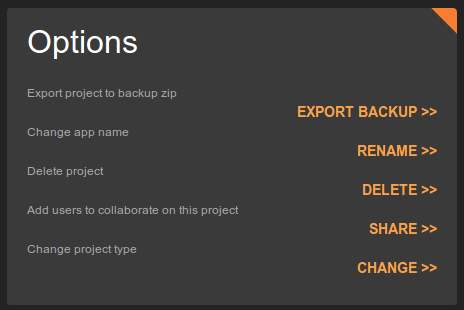
Our users have been asking for this feature for a long time and it’s now available. You can export and then import a project. To export a project, go to app options page (Export Backup):
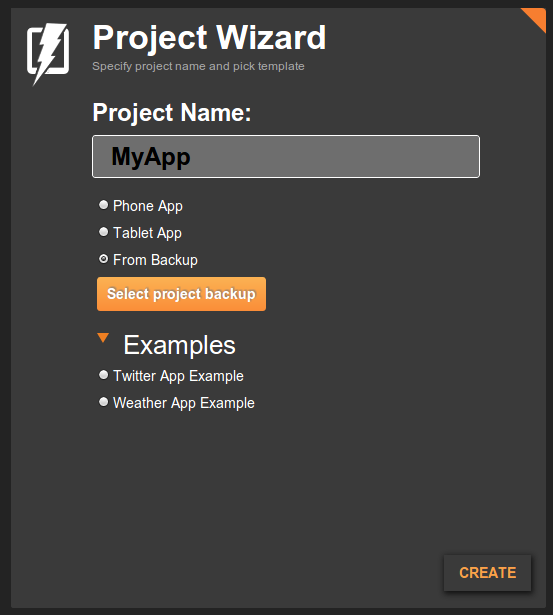
To import an app from backup, click From Backup when creating a new app (you get to this screen by clicking More Options link, see next section):
Even easier way to create a new app
Last, but not least, it is now even easier to create a new app. Right from Apps page, enter a new app name and click Create. That’s it.

Posted: July 18th, 2012 | Author: max | Filed under: API, Database, Mobile Backend, Plugin | Tags: API, Database, Mobile backend, Plugin | No Comments »
Last weekend we participated in the AT&T Mobile Hacktathon hosted by StackMob. Just before the event we published StackMob API plug-in in Tiggzi app builder so that it would be very simple to connect to StackMob. Here is how easy it is to connect to StackMob.
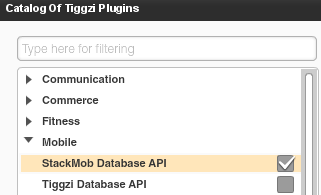
In Tiggzi app builder, select Create New > From Plug-in, then select the StackMob plug-in:
When you click to import the plug-in, you will be asked to enter StackMob key that identifies your app:
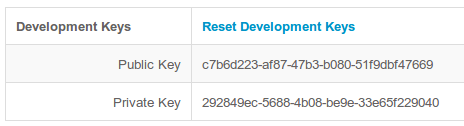
If you won’t enter the key right away, you can always set it by going to Services/StackMobDatabseSettings file.
The StackMob service looks like this:
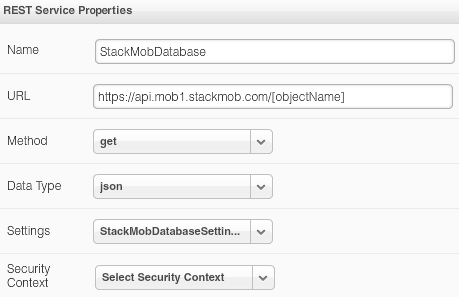
You will notice that the URL has [objectName] in it. Simple set it to the object schema name defined in StackMob. My object is called messages so the updated URL would be this:
https://api.mob1.stackmob.com/messages
The service does a GET by default but you can set it to do any other action.
We can now instantly test the service. Open Request Parameters panel and click Test Connection:
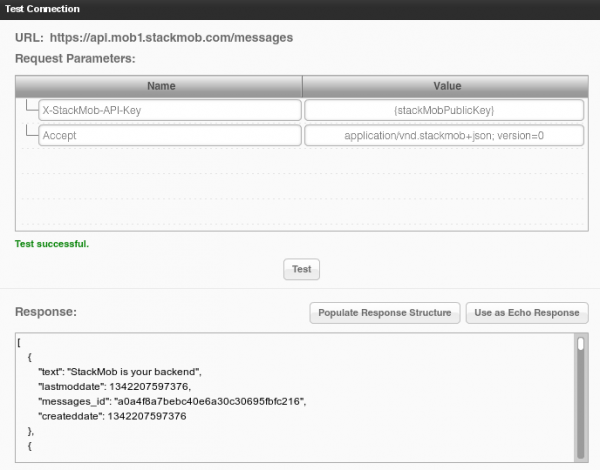
We get result back which means our service works (you should create a few sample objects in StackMob before testing). The service input is defined, we now need to define the service output. That can be done automatically by clicking Populate Response Structure button.
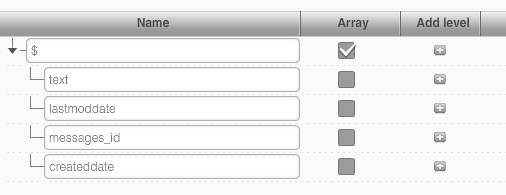
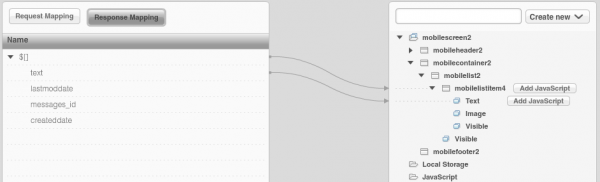
Once the service is ready, add it to the page, and bind the service to the UI:
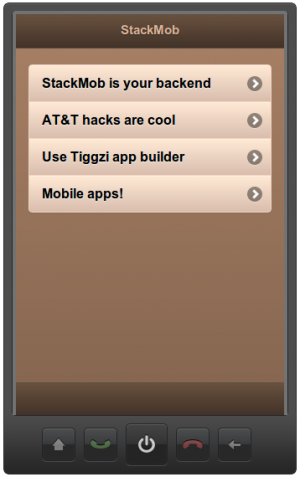
and finally run the app:
Posted: July 16th, 2012 | Author: max | Filed under: API, Database, Mobile Backend | Tags: API, Database, Mobile backend | No Comments »
In case you missed we just launched Tiggzi Database - a cloud database for your mobile app. It’s the first feature as part of our mobile backend services. We are working on really cool stuff such as Push and more!
Database API Plug-in
Creating a new service based on Tiggzi Database is very simple as each collection comes with a nice REST API hints:
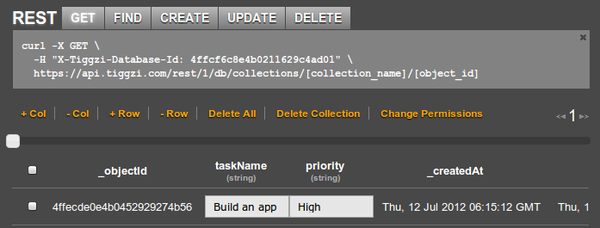
But there is even easier way to add a service by using Tiggzi Database API plug-in. From Project tab, click Create New > From Plug-in and select Tiggzi Database API plug-in:
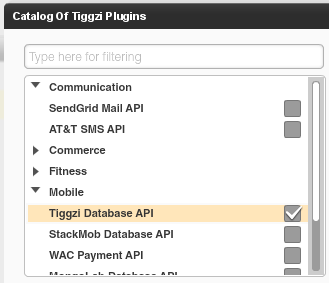
When you import the plug-in, you will be asked to enter the Tiggzi Database Id you can get from the REST API hint section (or from Dashboard tab). If you don’t set it during import, you can always set in Services/TiggziDatabaseSettings file.
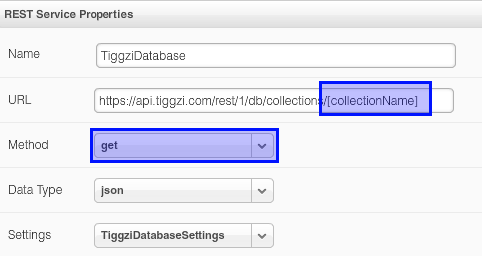
As you can see the URL is already set. Just set the collection and you will be ready to go. The service defaults to GET but you can change it to any method as shown. You can switch to Request Parameters, enter any request parameters and click Test. From Test, you can automatically define the service’s response structure.
The database key is also set in Request Parameters panel:
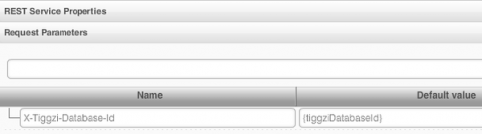
The {tiggziDatabaseId} is resolved from Services/TiggziDatabaseSettings file.
We got some really awesome integration planned very soon. Right from Tiggzi app builder you will be able to browser and create new collections.
Documentation
Looking for docs? View Tiggzi Database docs. We are also working on some really nice tutorials. If you have any questions, you can always email us or post on our forum.
Posted: June 29th, 2012 | Author: max | Filed under: API, Articles | Tags: API, article | No Comments »
By David Schoenbach, Vice President of product management at Exadel Inc.
The cloud is where it’s at. It’s where business data resides. It’s where social user-generated content sits, where forward-thinking creators place their tools. Unfortunately, the cloud is also the place all that good stuff stays, unused and unloved. That is, unless you offer smart ways to access it. That is where a web API comes in.
Just as the power of crowds has populated the social content repositories of Web 2.0 — YouTube videos, Facebook updates, tweets, and more — the web API enables designers and developers to re-purpose the body of knowledge that is the cloud. Here are some examples of how companies have used a web API to create more value.
Read more →
Posted: June 20th, 2012 | Author: max | Filed under: API, Plugin | Tags: API, Plugin | 2 Comments »

If you plan to use MongoLab database in your app, it’s now even simpler with our new MongoLab database plug-in. Here is how to create one.
Click to import a plug-in:

then select Mobile and click MongoDB Database API:
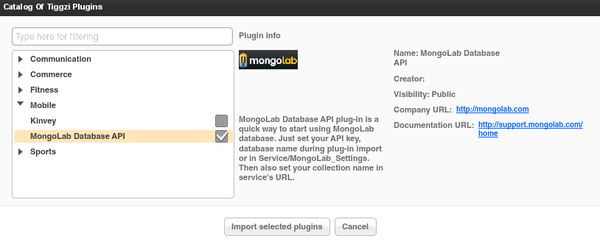
next you will be prompted to enter database API key and database name. Both values can be found in your MongoLab account:

If you don’t set these values during import, don’t worry. You can also set them in Services/MongoLab_Settings after the import.
In addition to API key and database name you also need to set the collection name (as we don’t have that information). The collection name is defined and set in Request Parameters panel:

In the Default Value column enter the collection name. You may also set the collection name directly in the URL. The reason collection name is set in request parameters and not in the settings file is because it will change often while the other values are most likely going to stay the same.
Once the service is imported, you can test the service and automatically create the response structure from it.
Posted: June 18th, 2012 | Author: max | Filed under: API, Plugin | Tags: API, Plugin | No Comments »

We were getting a lot of questions how do you send email from your mobile app? We would always tell user to use SendGrid, a wonderful cloud service that provides REST API for sending out emails. Today we released SendGrid Mail API plug-in in Tiggzi. All it takes now is a few clicks and you are ready to send emails from your mobile app.
To import the plug-in, click the block button in Project view:

Open Communication category and select SendGrid Mail API:
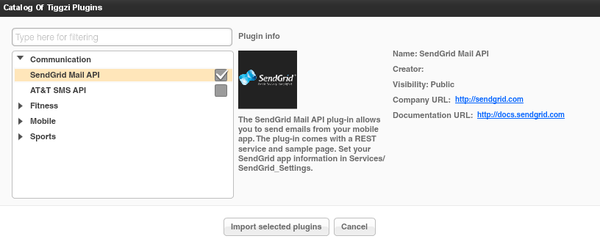
Click Import selected plug-ins button. You will be prompted to enter api_user and api_key values. Before being able to send out emails with SendGrid you need to sign up for an account (they do offer a free plan). You will then get a api_user and user_key. You may skip entering these values right now. You can always set them in Project/SendGrid_Settings.
Once the plug-in is imported, you will have page called Sendmail that looks like this:
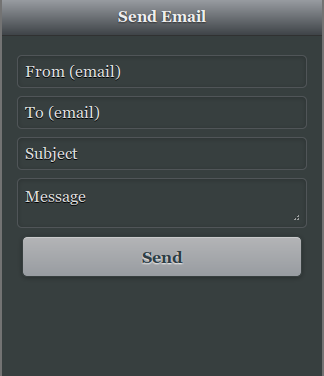
The UI is built with jQuery Mobile.
You can also open the REST service (SendGrid_MailSend). The URL is defined here:
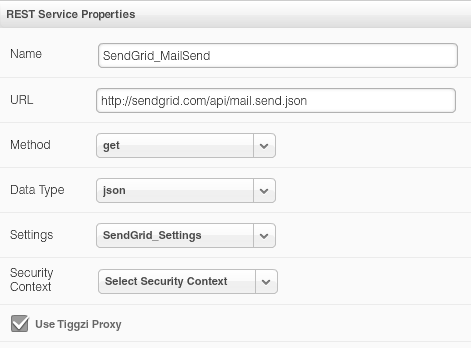
Request parameters:
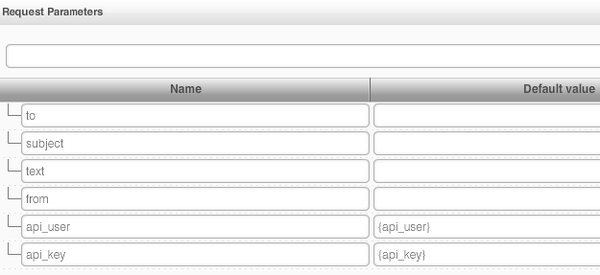
{api_user} and {api_key} are set in SendGrid_Settings.
And finally the service mapping (UI to service):
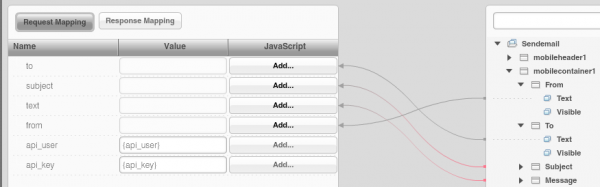
This REST service has additional option parameters which are described here. You may modify the service as you need. SendGrid provides other API’s that you can find here.
Have fun building apps in Tiggzi, now with SendGrid email API.
Posted: June 8th, 2012 | Author: max | Filed under: API, Features, Plugin | Tags: API, features, Plugin | No Comments »
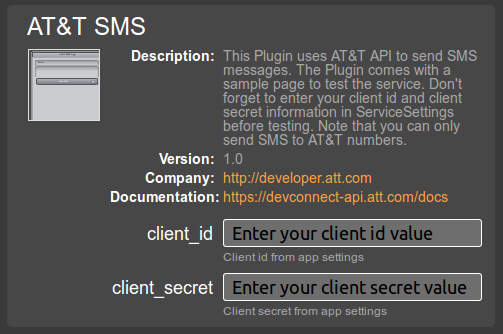
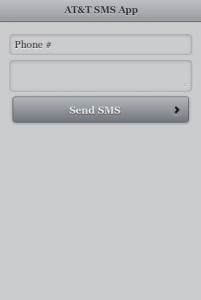
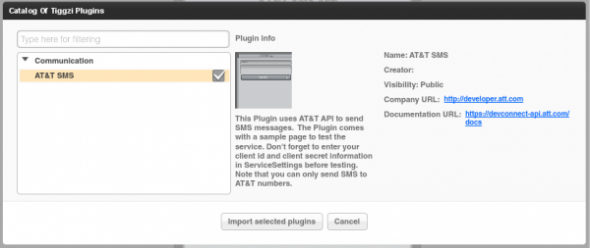
In addition to AT&T SMS API Plug-in, we just made available AT&T mHealth API Plug-in in Tiggzi app builder.
mHealth gives you control over your health and wellness data and makes that data more accessible than ever before. With a rich ecosystem of supported devices and applications, mHealth enables you to manage your personal health and wellness from the palm of your hand, anytime, anywhere
Source: https://mhealth.att.com/what
In addition to REST services, the plug-in has two pages. On the first page there is a button to connect to mHealth. When you click on the button, mHealth login page will be opened. Once you login, you will be redirected back to the app and shown the second page. On the second page a simply REST service is invoked showing to what data access is available. The plug-in is set up with three scopes (/read/health/data/fitbit /read/health/data/poke /health/read/user). mHealth docs shows more available scopes.
To add the plug-in to your app:
- Create a new app, make sure to create Mobile App (not Mobile Web)
- Inside the builder, click on the “blocks” button in Projects view:

- Select Fitness category, then check the plug-in
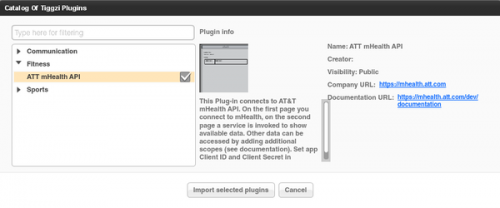
- Click Import selected plugins. You will be prompted to enter the client_id and client_secret information. This information can be obtained from mHealth app settings. You may skip it and enter it later
- Enjoy the plug-in!
The plug-in is just in time for AT&T Education Hackathon happening today and tomorrow in Palo Alto, CA. Tiggzi team will be there.
Posted: June 7th, 2012 | Author: max | Filed under: API, Articles | Tags: API, article | No Comments »

Check out this really nice blog/tutorial on how to use Tiggzi to build a mobile app connected to cloud-based MongoDB, written by Ben Wen from MongoLab.
Posted: June 5th, 2012 | Author: max | Filed under: API, Articles, HTML5, iOS, JavaScript, jQuery Mobile, PhoneGap, Windows Phone | Tags: API, article, HTML5, iOS, JavaScript, jQuery Mobile, PhoneGap | No Comments »
Cloud Services

In the past year or so, we have witnessed a major shift from client-server to client-cloud. This shift is primarily fueled by two factors: mobile devices exceeding desktop computers and the thousands of different APIs available on the Internet today. What started in early 2000 on eBay and Amazon has become a real revolution in 2012 with thousands of companies, from Twitter and Facebook to AT&T, offering cloud-based services.
REST API
One of the most common ways to access private or public service APIs is via REST requests.
In the client-server approach an organization builds applications that consume its own internal content and resources. However, even large IT organizations such as AT&T, Verizon and Amazon have come to realize that they are no match for the social consumer and social enterprise developers out there. By making APIs publicly available, these organizations hope that developers and “citizen developers” will come and build applications and mobile apps on top of their services.
Citizen developers at work
Analysts at Gartner see a trend toward app creation independent of IT. They predict that by 2014, citizen developers – employees outside of IT and software development – will build 25% of new business applications. In 2007, they built less than 5%.
One of the best-known API success stories comes from Amazon: Its cloud service APIs let outsiders access the company’s massive data centers. Twitter, with its deceptively simple 140-character message model, exploded thanks to its API. In fact, you probably read and write tweets via a Twitter application or mobile app rather than going directly to Twitter’s Web site. Facebook’s Graph API has spawned a whole industry of apps to support its hundreds of millions of users.
Continue reading →