Posted: June 5th, 2012 | Author: max | Filed under: API, Articles, HTML5, iOS, JavaScript, jQuery Mobile, PhoneGap, Windows Phone | Tags: API, article, HTML5, iOS, JavaScript, jQuery Mobile, PhoneGap | No Comments »
Cloud Services

In the past year or so, we have witnessed a major shift from client-server to client-cloud. This shift is primarily fueled by two factors: mobile devices exceeding desktop computers and the thousands of different APIs available on the Internet today. What started in early 2000 on eBay and Amazon has become a real revolution in 2012 with thousands of companies, from Twitter and Facebook to AT&T, offering cloud-based services.
REST API
One of the most common ways to access private or public service APIs is via REST requests.
In the client-server approach an organization builds applications that consume its own internal content and resources. However, even large IT organizations such as AT&T, Verizon and Amazon have come to realize that they are no match for the social consumer and social enterprise developers out there. By making APIs publicly available, these organizations hope that developers and “citizen developers” will come and build applications and mobile apps on top of their services.
Citizen developers at work
Analysts at Gartner see a trend toward app creation independent of IT. They predict that by 2014, citizen developers – employees outside of IT and software development – will build 25% of new business applications. In 2007, they built less than 5%.
One of the best-known API success stories comes from Amazon: Its cloud service APIs let outsiders access the company’s massive data centers. Twitter, with its deceptively simple 140-character message model, exploded thanks to its API. In fact, you probably read and write tweets via a Twitter application or mobile app rather than going directly to Twitter’s Web site. Facebook’s Graph API has spawned a whole industry of apps to support its hundreds of millions of users.
Continue reading →
Posted: December 15th, 2011 | Author: max | Filed under: Features, JavaScript | Tags: features, JavaScript | 4 Comments »
One of the really great benefits building a mobile Web app is that you can use any custom JavaScript, a 3rd party library or something you wrote yourself. In Tiggr Mobile Apps Builder, you build mobile Web apps (which alter can be exported as native with PhoneGap) and so you can use any custom JavaScript. How do get the custom JavaScript code in the app? There are three ways.
First is using Run Custom JavaScript action attached to any HTML event. For example, let’s say you want to invoke some custom JavaScript on button click:
This approach works well but usually should be limited to just doing “small” tasks.
The second approach allows you to import a full JavaScript file/library into your app. It’s done by creating a new JavaScript file (asset) and you get the following options:
As you can see, you can easily create a file by importing it from a URL or load it from a file.
The last option is to add a JavaScript resource via project profile (Project > Project Profile > External resources):
This option will link to the specified file.
Happy mobile development.
Posted: September 30th, 2011 | Author: max | Filed under: Features, HTML5, JavaScript, Tutorials | Tags: features, HTML5, JavaScript | 9 Comments »
HTML5′s local storage is undoubtedly one of the most interesting and most talked about features in the HTML5 technology stack. Local storage is part of Web Storage specification and is supported by all modern browsers (destkop and mobile). Although local storage (or Web Storage) sounds rather sophisticated, the functionality is very easy to use. You basically get a map as storage inside the browser (available to all browser windows). You can insert, delete or read key/value pairs. That’s it. Data stored in local storage (localStorage) will be there when you close and open the browser. There is also session storage (sessionStorage). As the name implies, it will be only available as long as the browser window is open, and will be cleared when browser window is closed.
The only other thing to know is that data saved by a page is only available for a pages from the same domain. In other words, a page loaded from abc.com, doesn’t have access to data saved by page from domain xyz.com.
We are going to going to build an app that looks like the screen shot below. In fact, you can try the app here (click the image, or scan the QR code). Try it on your mobile device as well.

To build the app, I used Tiggr Mobile Apps Builder. If you are wondering why Tiggr? Well, because it’s incredibly simple and fast to create a project and build app. If you don’t have an account yet, quickly sign up here.
First build the UI by dragging and dropping jQuery Mobile components from the palette on to the phone. At any point, you can click Test to try the app in browser, or mobile browser.
You can use Tiggr to build real mobile apps without writing any JavaScript. But, for more advanced cases (like ours), you can easily write any custom JavaScript. You can even import 3rd party JavaScript libraries. In our case, we are going to create a new JavaScript file (called asset) with the following content:
// save item
function save(item) {
  var size = localStorage.length + 1;
  localStorage.setItem('key' + size, item);
}
// get storage content
function storage(){
   var output='';
   for (i=0; i <= localStorage.length - 1; i++)  {
      key = localStorage.key(i);
      val = localStorage.getItem(key);
      if (i == 0) {
         output = val;
      }
      else {
         output = output + '\n' +val;
      }
   }
   return output;
}
// clear storage
function clear () {
   localStorage.clear();
} |
There are three functions, one for saving a new item (save()), one for getting the current storage (storage()) and one for clearing the content (clear()). Local storage API is very simple. For example, to save an item:
localStorage.setItem('key', 'item'); |
then, to get a value from storage:
localStorage.getItem('key'); |
This is how the complete file looks inside Tiggr’s JavaScript editor:
The last step is to invoke JavaScript when the buttons are clicked. We also want to load storage content when the screen is loaded for the first time. Let’s work on the buttons first. To invoke JavaScript on button click, we first add click HTML event to the button:
Then we add Run Custom JavaScript action by clicking the + button:
Click on the action to enter JavaScript code. The code for Save to Local Storage button looks like this:
var item =$('[dsid="input"]').val();
save(item);
var output='';
output = storage();
$('[dsid="storageContent"]').text(output); |
We first find the input component using jQuery (it’s going to simpler to do that, once we introduce Tiggr JavaScript API, work in progress). Save the value from the input element, reload storage content so we can display it inside the textarea.
Clear Local Storage button looks like this:
clear();
$('[dsid="storageContent"]').text('');
alert('Local storage cleared.'); |
Lastly, we also add load event to the screen itself so that we can show storage content when the screen loads for the first time:
var output='';
output = storage();
$('[dsid="storageContent"]').text(output); |
Try it yourself (it’s easy and fun!) and try the finished app here.
Posted: September 25th, 2011 | Author: max | Filed under: Features, JavaScript, PhoneGap | Tags: features, JavaScript, PhoneGap | No Comments »
If you don’t know what Tiggr is, Tiggr is a Web-based mobile apps builder or a mobile RAD (Rapid Application Development) tool. It enables developers to build mobile Web and native apps very quickly. Tiggr comes with a visual editor and jQuery Mobile components. You simply drag and drop components into the phone area.
This makes it very easy to prototype and build the UI. Once you have developed the UI (which you can share and test in browser or mobile device), you define and connect to REST services. Once the service is defined, it is mapped to the UI. A service usually has inputs and outputs. Mapping means taking input from UI (such as input component) and using it as input for the service. On the other side, taking service output and mapping it back to the UI, for displaying the result. One last step is usually adding an event to invoke the service. For example, on a button click the service can be invoked. What I just described is a very easy and fast way to build mobile Web apps. There is nothing to setup or configure, just launch the Tiggr visual editor and start building.
Now, how do you get a native app? That’s where PhoneGap comes in. PhoneGap is an open source framework, it wraps your mobile Web app and gives you access to native device API. To use native features, PhoneGap provides very clean and elegant API. For example, to sound a notification beep twice, you need to call the following:
navigator.notification.beep(2); |
Simple, right?
To get device information, the following code is used:
alert ('Device Name: '  + device.name     + '\n' +
     'Device PhoneGap: ' + device.phonegap + '\n' +
     'Device Platform: ' + device.platform + '\n' +
     'Device UUID: '     + device.uuid     + '\n' +
'Device Version: ' + device.version + '\n'); |
Any native mobile project in Tiggr comes configured with PhoneGap version 1.0. How do you invoke this API when building a mobile app in Tiggr? It’s very simple. Tiggr comes with Run Custom JavaScript action which can be invoked on any HTML event. Let’s take a button. When a button is clicked (click event), you add an action (Run Custom JavaScript) to invoke. That’s it. Inside the Run Custom JavaScript, you can run any custom JavaScript.
You start with a button, we will use the Vibrate button:
Add click HTML event to the button:
Add Run Custom JavaScript action:
and finally add PhoneGap JavaScript call:
navigator.notification.vibrate(1000); |
Another option is to create a JavaScript file (Project > JavaScript), write all the custom code there in functions and then invoke any function via Run Custom JavaScript action.
JavaScript file:
Invoking a function from the custom JavaScript file:
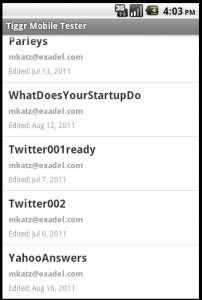
Once you use native API, testing in Web browser is no longer possible. To make it super easy to test your native app, you can use Tiggr Mobile Tester. It’s a native app (Android, iOS) which lists all your mobile projects created in Tiggr. You simply tap any app and launch the native app. The app looks like this:
Like what you see? Try Tiggr Mobile Apps Builder yourself!
Thanks to Paul Beusterien for the example idea.