Posted: March 7th, 2011 | Author: max | Filed under: mobile, Tiggr | Tags: mobile | No Comments »
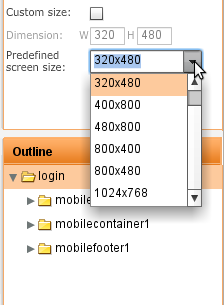
Creating Web and mobile interactive HTML prototypes in Tiggr is simple. But what about the iPad (and other tablets)? Well, turns out it’s pretty simple as well. All you need to do is change the prototype screen size to iPad’s (1024×768):
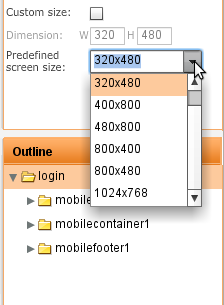
To start your prototype for iPad, don’t forget to switch Screen Type to Mobile.
Posted: February 23rd, 2011 | Author: max | Filed under: Features, New release, Tiggr | Tags: features, release, Tiggr | 6 Comments »
Today we released Tiggr version 1.2.6 with numerous features and enhancements. Behind the scenes, we made the editor more stable and faster. We think you will really like what we have in this release.
Mobile palette
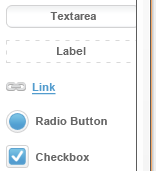
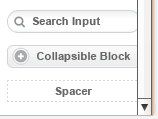
New link and spacer mobile controls to make it simpler to build mobile prototypes:
Mobile preview
Mobile preview now shows the prototype within the actual screen size you defined in properties:
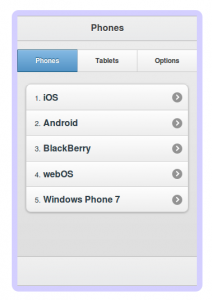
Select a predefined size or set a custom one:
Flexible tabs
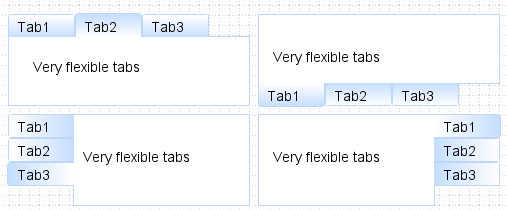
Tabs layout container got even more flexible. In addition to positioning the tabs at the top or bottom, you can also now position tabs on left or right:
Navigation added to menu component
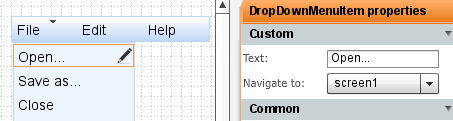
It was possible to navigate between pages using a link, button or an image but somehow we missed the menu. Well, it’s now possible to navigate via menu as well. Drag and drop a menu into a page and head to properties to set navigation:
More fine-grained sharing controls
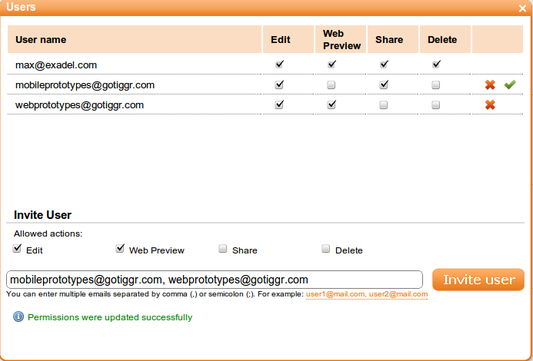
If you shared a project before, the user you shared with had full access to the project, he or she could edit, delete, preview and invite others to share. Starting with this release, you can control what permissions each user has. And, you can invite multiple users at once, just separate emails with a comma or semicolon.
Editor improvements
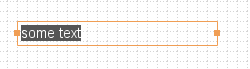
Edit mode after insert
When you insert a new component, the component is inserted in edit mode automatically, so it’s easier to edit (no longer need to double click to enter edit mode):
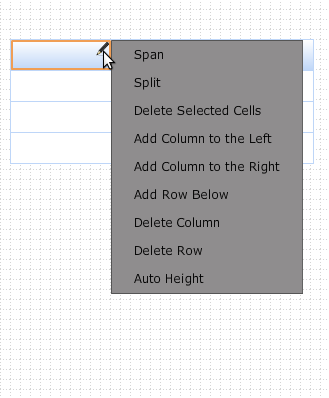
Easily edit grid and table rows/columns
Let’s just say editing a grid or table row/column wasn’t the simplest task to do. Luckily, we made it much simpler. Just click the edit icon (pencil) in a column and select your action. That’s it. You can also edit rows/columns in properties.
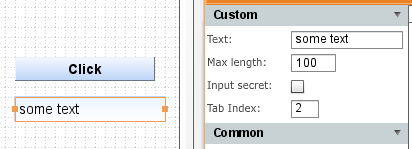
New property for setting tab index
When viewing a prototype in a Web browser, it’s important to be able to test how tabbing works on input components. When creating a prototype, it’s now possible to set a tab index for input components:
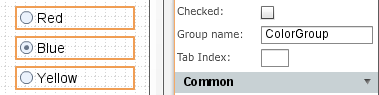
Radio button groups
Creating a radio button group was some what tricky (had to place the buttons inside a container). You don’t have to do it any more. A new property allows you to include any number of radio buttons in a separate group:
Delete account
We hope you will never do, but if you really really have to, you can now delete your Tiggr account by going to My Account (just in case, you will have 2 weeks to reactivate it). [User requested].
Feedback
As always, let us know what you think and what features you would like to see: http://getsatisfaction.com/gotiggr.com. Don’t forget to follow Tiggr on Twitter (@gotiggr).
Posted: February 18th, 2011 | Author: max | Filed under: Review, Tiggr | Tags: review, Tiggr | No Comments »
TheServerSide.com: Why You Need Interactive and Clickable UI Prototypes for Your Next Project
Posted: February 15th, 2011 | Author: max | Filed under: Tiggr | Tags: Tiggr | No Comments »
We moved Tiggr support to a new address, at http://getsatisfaction.com/gotiggr. But don’t worry, we have moved all the community topics there as well. So, let us know what you want to see, what we can do better or answer any questions.
The Tiggr team.
Posted: November 29th, 2010 | Author: Mikhail Sorokin | Filed under: Features, Prototyping, sharing and collaboration, Tiggr | No Comments »
Max already mentioned in his posts how you can collaborate using Tiggr, in this post I want to elaborate little bit more on this.
What collaboration tools Tiggr provides?
- Project sharing
- Whiteboard synchronization
- Built-in chat
- Prototype sharing
- Export as HTML bundle
Now let’s take a look at each of them.
Read the rest of this entry »
Posted: November 15th, 2010 | Author: Mikhail Sorokin | Filed under: Features, Tiggr | No Comments »
Tiggr provides a very handy way of managing your assets.
Let’s see how you can add an image to your mockup.
1. Drag and drop an image component from the palette.
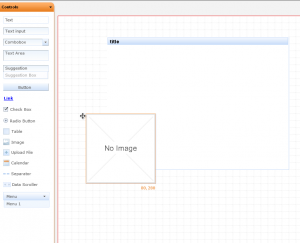
adding image to Tiggr
Read the rest of this entry »
Posted: November 10th, 2010 | Author: max | Filed under: Features, Tiggr | Tags: features, Tiggr | 1 Comment »
Layout is crucial in any design. Luckily, Tiggr provides 6 different and customisable layout containers to help you that. All the available layout controls are available via Containers palette:
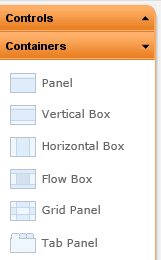
The first one is Panel:
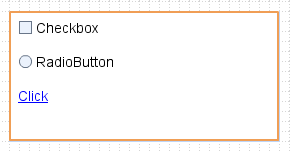
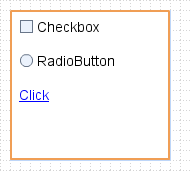
Panel is more or less a general-purpose container where the layout is set to vertical by default. You can change the layout flow in properties:
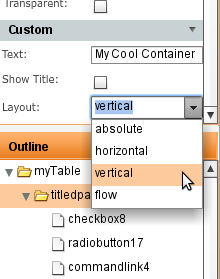
Next is Vertical Box in which the layout is set to vertical by default:
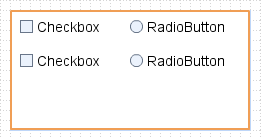
Horizontal Box sets layout flow to horizontal:

Flow Box sets layout flow to flow:
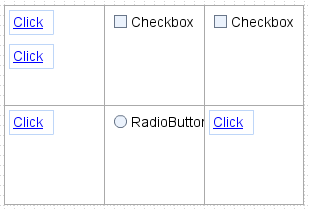
Grid Panel divides a panel into equal size squares inside which you can place other controls:
One more is the Tab Panel:
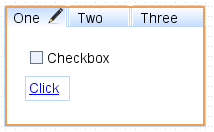
It’s possible to create (and edit) any number of tabs and place any controls inside them: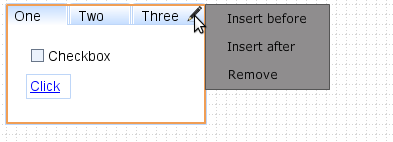
Enjoy layouts!