If you worked with JSON, then you are aware of the cross-domain policy which prevents a script loaded from one domain, to invoke services from another domain. This means that the domain of the requested URL must be the same as the domain of the current page. A number of work around exists but one of the most popular once is using JSONP. JSONP allows a requesting URL from one domain to invoke a service from a different domain. Tiggr Mobile Apps Builder now supports JSONP. Why is this important? Well, it makes very simple to build and test mobile apps in Tiggr. Now a page can be loaded from abc.com domain and invoke a service from xyz.com. Most REST services today support JSONP.
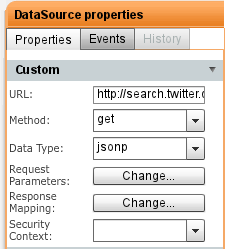
To use JSONP is very simple. When defining REST service, select jsonp for Data Type:
JSONP support
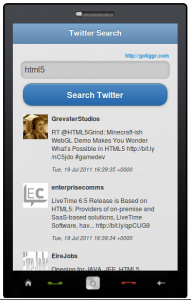
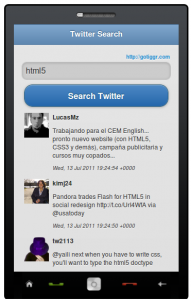
Twitter Search App
To try this in action, try this Twitter Search app built in Tiggr.
After a short private beta we are happy to announced that Tiggr Mobile Apps Builder is now open to everyone. Now, the app is still beta and we have tons of features we are planning to add. So, just go to http://gotiggr.com and click on Sign Up Now for Mobile Apps Builder. Then try one of our getting started guides but first read this (we are adding more tutorials). It’s a 6-step guide on how to approach building mobile apps in Tiggr.
Need a particular feature, service or component? Tell us here: http://getsatisfaction.com/gotiggr.
Today, we’ll be having a briefing for our beta users of Tiggr Mobile Apps Builder. Becoming a beta user and participating in our community briefings is a great way to influence and guide the development of a useful product and make it even more useful.
It’s easy to become a beta user. Here are three ways:
If you don’t already have a Tiggr account, you can sign up right from the home page using the button in this block:
When you sign up for any Tiggr Prototypes Builder plan and click on the activation link, you’ll be presented this first time with a pop-up giving you an opportunity to join the beta:
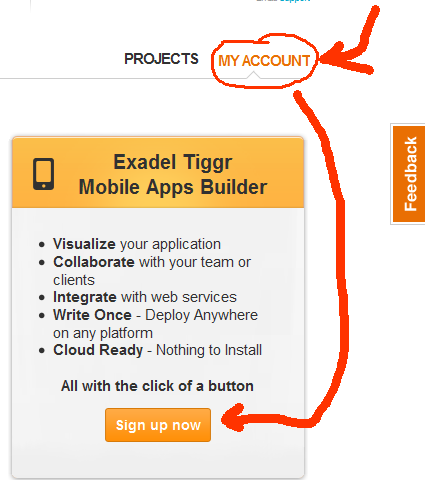
If you already have an existing Tiggr account, you can become a beta user by going to My Account and clicking on the sign-up button:
You’ll have a “pending” status at first, but you should only have to wait a few hours before you become activated.
HTML5 introduces a handy new feature for input elements. Using placeholder attribute, you can place a slightly greyed out label inside an input field. When you click on the field and enter text, the label clears. If you delete the input, the placeholder labels appears again. Here is an example (assuming you are using HTML5 complaint browser):
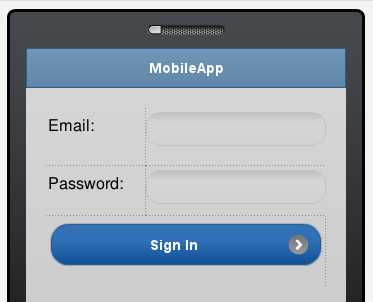
You can do the same thing in Tiggr Prototype Builder or Mobile Apps Builder. Now, it involves a little trick but we will make it much simpler in the near future. Let’s say we start with a screen like this (editor view):
Click the screen outside the phone area, switch to Events view
Click Add Event and select Load
Click the + sign to add an action and select Set HTML Attribute
Component name: find the first input component. Its name should be set to something like ‘mobileinputtextX’ (unless you renamted it)
Property name: placeholder
Value: enter any text you want to see in inside the input
Click OK
Repeat the same for the second input component.
Click Web Preview to view the app in Web browser
To view on your phone, select Web Preview > Configure and select Anybody can view this project on the Web. The open the URL shown on your phone.
Try out this app or via QR code below:
Yes, it’s too many steps to add such functionality. It’s really just a workaround for now. We will make it possible to set any attributes from Properties view, without needing to add event and action.
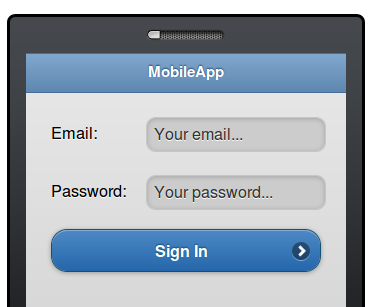
Here is how it looks in a Web browser:
Upcoming Events
Webinar: Tiggzi Plugins – The Pre-packaged Approach to Consuming REST APIs in jQuery Mobile App
Wednesday, March 28, 2012 at 11am PT More Info.