Posted: February 17th, 2012 | Author: max | Filed under: Articles | Tags: article, HTML5, JavaScript, jQuery Mobile, Mobile backend, PhoneGap, REST | No Comments »
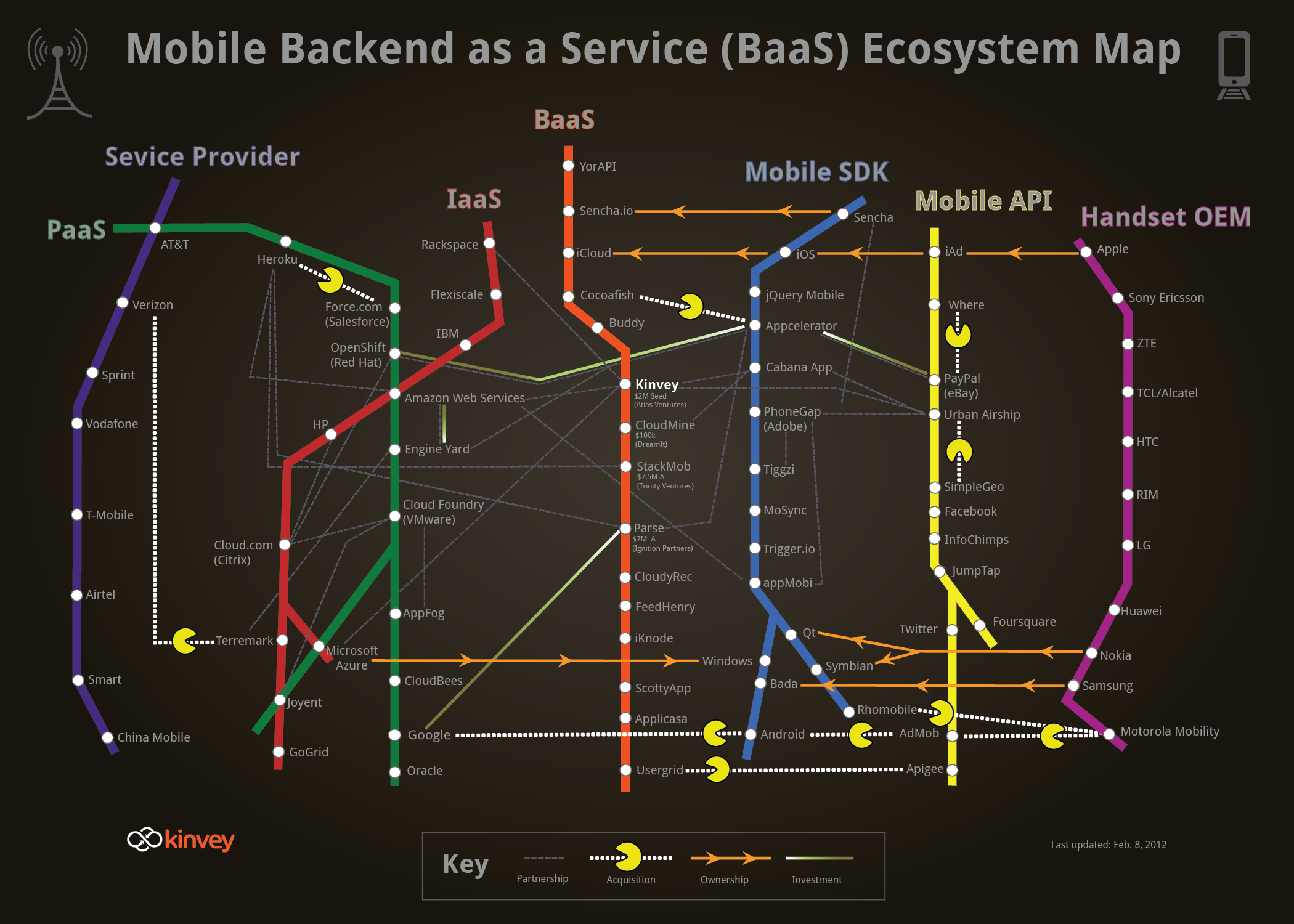
ReadWriteMobile has posted an interesting Infographic created by Kinvey mapping the current mobile ecosystem (click on image to view larger version):
(Image source: http://kinvey.com/images/kinvey_backend-as-a-service_mobileecosystem_2100px.png)
First of all thanks to Kinvey for creating this wonderful map and including Tiggzi in it (blue Mobile SDK line). Tiggzi could actually span 3 different lines: BaaS, Mobile SDK and Mobile API. Tiggzi is a cloud-based HTML5 mobile app builder, so it’s not exactly a mobile SDK. In fact, the technology under the hood is HTML, JavaScript and jQuery Mobile. For hybrid apps, the app can be wrapped in PhoneGap, which also provides access to native device features. So, there is no really “custom” SDK.
Second, from the builder it’s incredibly easy to consume any REST API (yellow Mobile API line). Tiggzi comes with a pretty nice REST services console where any service can be tested. From the same console, the REST service response (structure) can be automatically created. Once the service is defined, it is mapped to jQuery Mobile UI using a visual mapper (UI to service input, service output to UI).
Thirdly, as most BaaS services (orange line) are exposed as REST, HTML5 mobile app built in Tiggzi, can easily connect and use those services.
Lastly, and maybe the most important point is how incredibly fast you can build apps. It sort of all makes sense.. you got cloud-based mobile backend (exposed as REST) and cloud-based app builder to build the apps. It sounds simple.. but a really elegant picture.
This perfectly describes Tiggzi. Tiggzi is cloud-based builder for creating HTML5, jQuery Mobile, PhoneGap, and RESTful mobile apps.
Originally posted: http://mkblog.exadel.com/2012/02/mapping-the-tools-in-the-mobile-development-ecosystem-and-how-tiggzi-mobile-app-builder-fits-in/.
Posted: December 12th, 2011 | Author: max | Filed under: Features | Tags: features, REST | 1 Comment »
Mapping mobile UI to service is one of the most basic tasks in any mobile app (or a standard Web application). Input data entered by the user is sent to the service (input), the service is invoked, returns data (result) is sent back to the app for displaying results. Tiggr Mobile Apps Builder makes it super easy to map UI to service. Let’s look at an example.
REST service settings:
REST service input parameters:
REST service output parameters:
To open the standard mapping editor, there are two buttons in properties for a service:
Mapping UI to service look like this:
The service input parameters are on the left and are mapped to input components and properties on the right.
Mapping service back to UI for displaying the result looks like this:
The service output parameters are on the left and are mapped to output components and properties on the right.
Now there is even a more visual way to do the same. There is a new Data Mapping tab in the main editor, clicking the tab will open a visual data mapping editor:
That’s a pretty cool way to do mobile UI to REST service mapping.
Posted: November 10th, 2011 | Author: max | Filed under: Events | Tags: Android, events, HTML5, JavaScript, jQuery Mobile, REST, webinar | 1 Comment »
When: November 16, Wednesday, 11am US Pacific Time
Register: https://www1.gotomeeting.com/register/466425672
One of the great things about Tiggr Mobile Apps Builder is its support for end-to-end development, going all the way from an idea in one person’s mind to an app running in thousands of phones. In this webinar, we’ll show you exactly how it’s done (and how easy it is) by walking you through a hands-on example. The focus will be on exporting options for apps. In this case, we’ll export an Android binary (.apk) and publish to the Android Market. Of course, we’ll quickly build an app first, so you can learn or refresh your memory about how to build the UI with jQuery Mobile, connect to REST services, and test the app.
Posted: November 4th, 2011 | Author: max | Filed under: Features | Tags: features, REST, tips | 1 Comment »
In the context of mobile apps, basic access authentication is way for a Web browser to provide user name and password when invoking a REST service. A REST service that requires basic access authentication will look like this:
https://username:[email protected]/products
As you can see we are using https: and passing the username and password to the service.
Working with REST services (that return JSON or XML) is very easy in Tiggr Mobile Apps Builder. Tiggr comes with a service editor where you define service settings such as URL, and data format type (JSON, JSON, or XML). Request Parameters - for defining service inputs. Response Parameters - for defining service outputs.
Service properties for Twitter Search REST API:
Another very important feature of the service editor is the ability to test the service right from Tiggr. Here is an example testing Twitter search service:
From this screen you can also automatically create the service’s response parameters by clicking Populate Response Structure button.
Now, if you have a service that requires basic access authentication, you would simply enter the URL in the service settings:
The next step is usually to enter service request parameters and then test the service. But, when you test the service, the service will fail with a message like this:
Why does it fail? When you use a URL such as: https://username:[email protected]/products, basic access authentication is only supported by the Web browser. When you test the URL inside Tiggr, it does a regular GET request, without the basic access authentication and the service fails. When you run the actual app, everything should work, as request will be coming from the Web browser. We are looking at how to update the test feature to support basic access authentication.
What if you still want to create the service response parameters automatically? That’s still pretty easy to do. Run the service in Web browser. Copy the output. Open Response Parameters panel in service editor. Click Populate from Sample Response. Paste the response. Click Populate Response Parameters. That’s it. Again, keep in mind that when running the mobile app, everything will be working.